
How can I reuse video lessons and message templates and still give each client personal feedback?
Clarityflow lets a coach record a lesson once, save it as a message template in the Library, and insert it into any client's conversation. The personal part goes in that client's private conversation, as a threaded reply under the lesson. Courses turn the same lessons into one conversation per enrollee; the pricing page shows which plans include courses.
Updated · By Clarityflow
This guide is published by Clarityflow, the coaching software used in the steps below; the steps follow Clarityflow's help guides.
Which to use for which job
What you want to reuse | Use | Available |
|---|---|---|
A lesson, explanation or assignment you give often | A message template in your Library | Every plan |
A lesson in several parts, or a module | A thread template, which inserts several messages as one thread | Depending on your plan |
A sequence each client works through at their own pace, with their own place to ask you questions | A course | Depending on your plan |
The same lesson in many existing client conversations at once | Broadcast to Conversations | Depending on your plan |
A template sends the same content to every client. The personal part is what you add in reply.
Before you start
What you need: a Clarityflow account with your clients in their own private conversations (see how to invite a client). Every plan includes unlimited clients and conversations. Thread templates, courses and broadcasts depend on your plan, so check pricing for which plans include them, or read how Clarityflow's plans differ.
What you'll have at the end: a Library of your most-used lessons, a routine for inserting one and replying personally, and, if you use courses, one private conversation per enrollee.
How to reuse lessons and still give personal feedback, step by step
1. Save a lesson as a message template
In your Library, select "New Message Template" and give it a name you'll recognize later. Then record a camera, screen or voice message, or write text. Add files, a form or tasks if the lesson needs them. You can also turn a message you already sent in a conversation into a template. See how to build your Library.
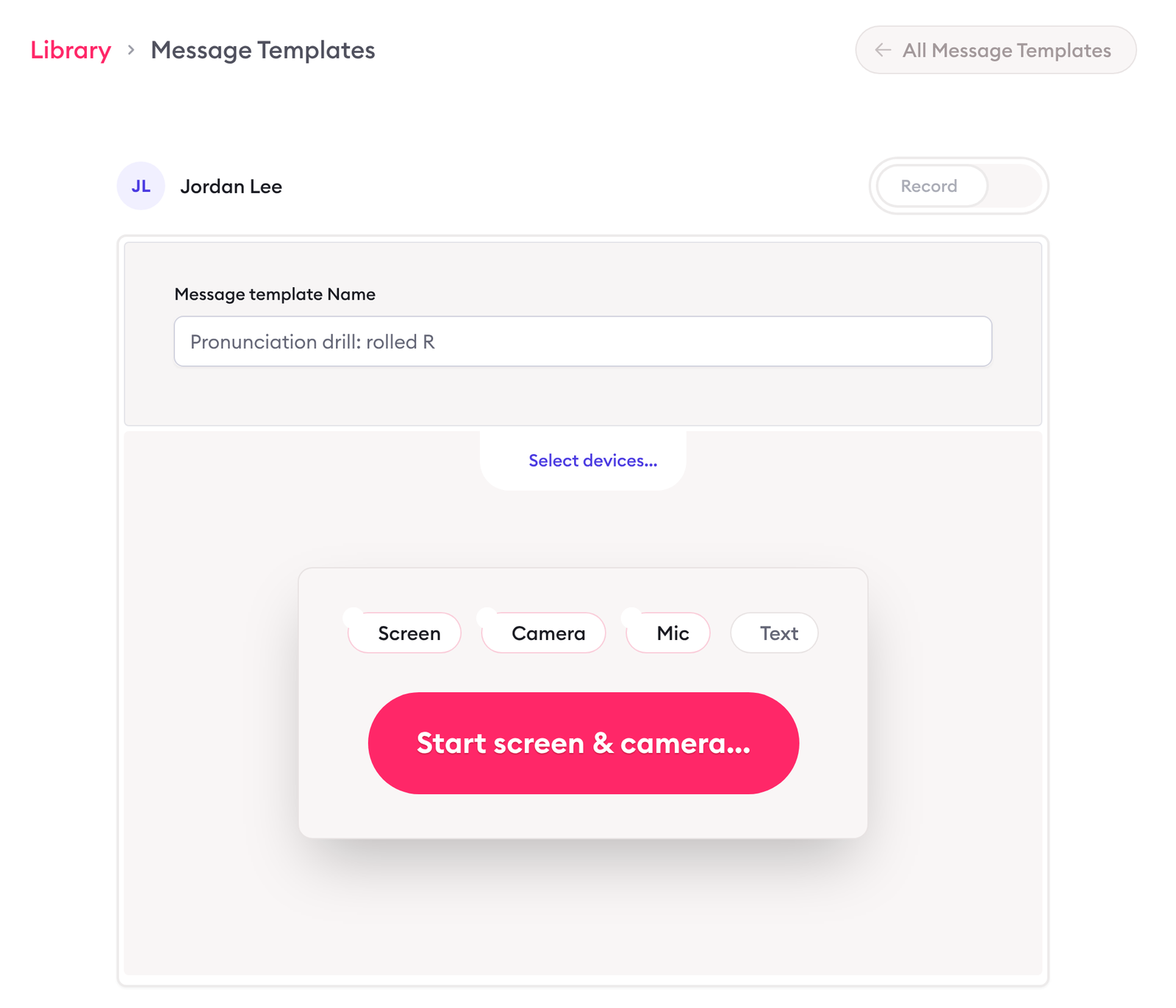
Saving a lesson as a new message template in the Library. Screen captured October 2026 with sample content.
2. Put a lesson in several parts into a thread template
When a lesson has several parts, put the messages into a thread template. It inserts into a conversation as one thread. Thread templates depend on your plan.
3. Insert the lesson into a client's conversation
Open the client's conversation, open the message composer and select "Library". Search for the template by name and select it to insert it. See how to search your templates.
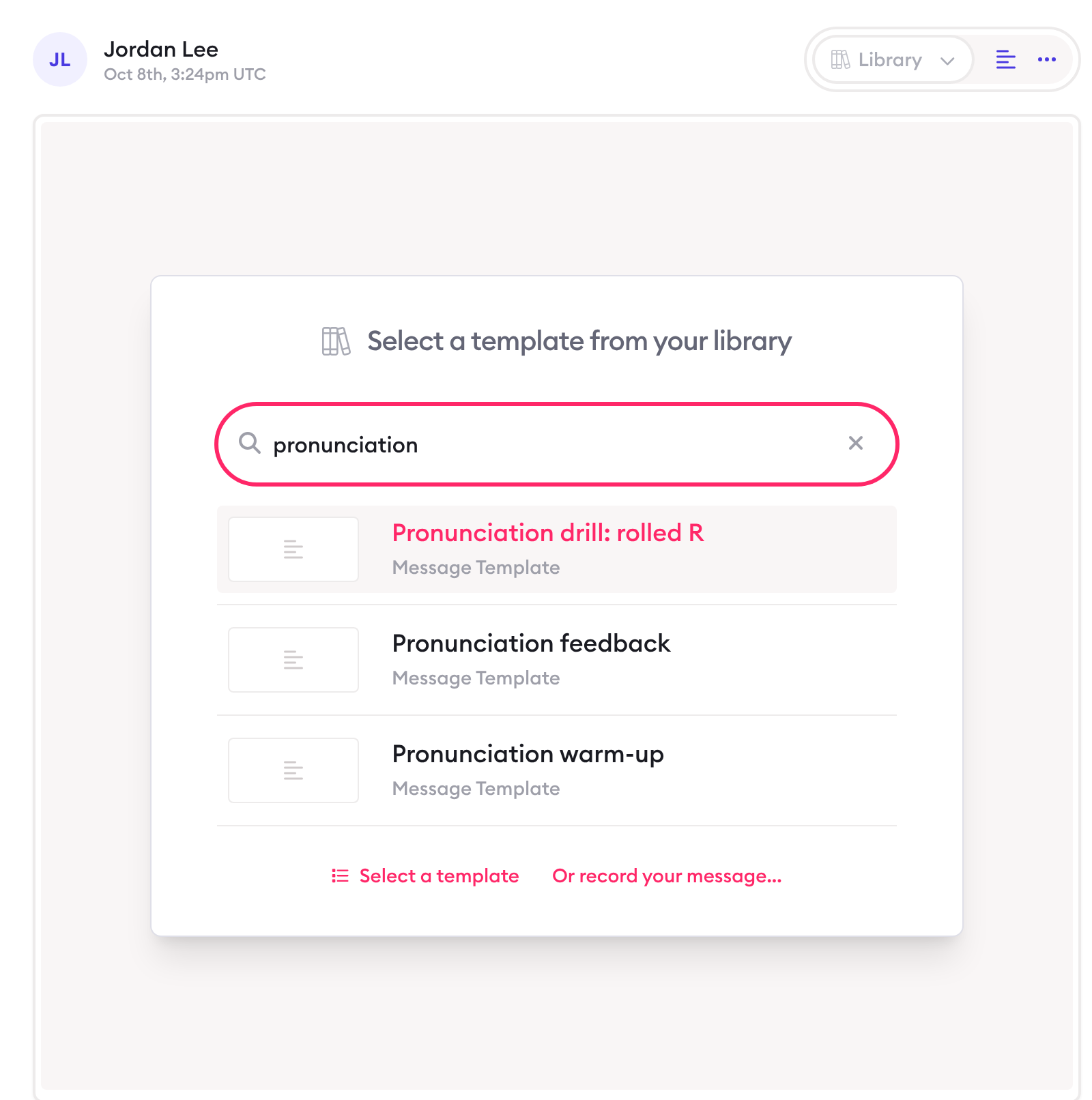
Inserting a saved message template from the Library. Screen captured October 2026 with sample content.
4. Add the personal feedback in a threaded reply
Reply in a thread under the lesson with a short recording or text about that client's own work or question. The client answers in the same conversation, so the lesson and your feedback stay together, and each client's feedback stays in their own private conversation. See how threaded replies work.
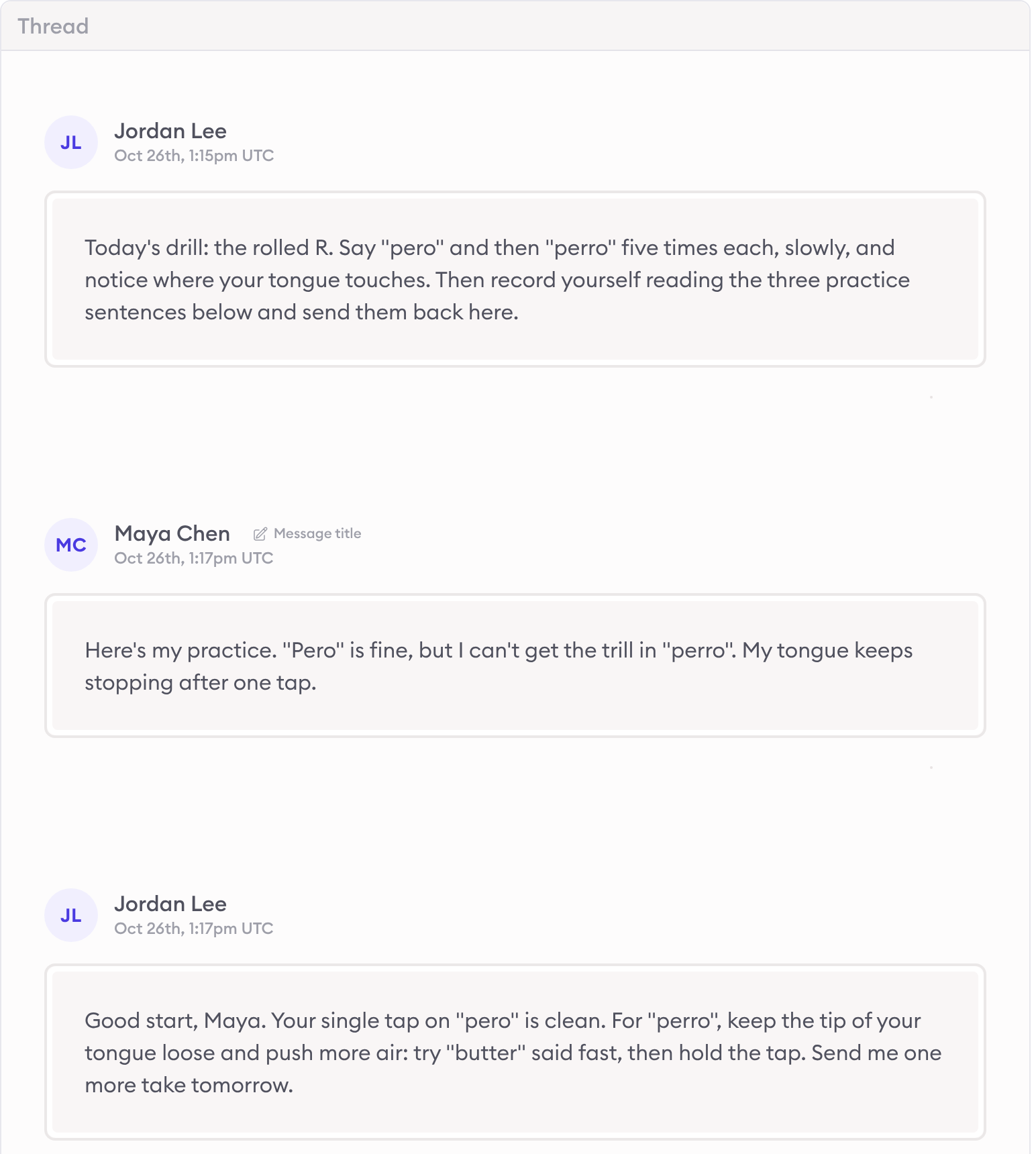
An inserted lesson with the client's question and the coach's personal feedback in the same thread. Screen captured October 2026 with sample names.
5. Optional: package a sequence as a course
Depending on your plan, go to Courses and create a course. Add message templates as lessons and thread templates as modules; anything you record in the course builder is saved to your Library. You can also convert an existing conversation into a course.
Enroll people from the course ("Enroll someone"), through an invitation's onboarding, or from a contact. Each enrollee gets their own conversation with the course content, where they ask questions and you reply under the lesson they're on.
To keep each enrollment private, turn off "New instances of this course will be public" in the course settings; each enrollment is then visible only to the enrollee and your team. Use "Drip automation" to release lessons on a schedule, and "Update enrollments" to post a new lesson into existing enrollments without duplicating what they already have. See how to create a course, drip courses and evergreen courses.
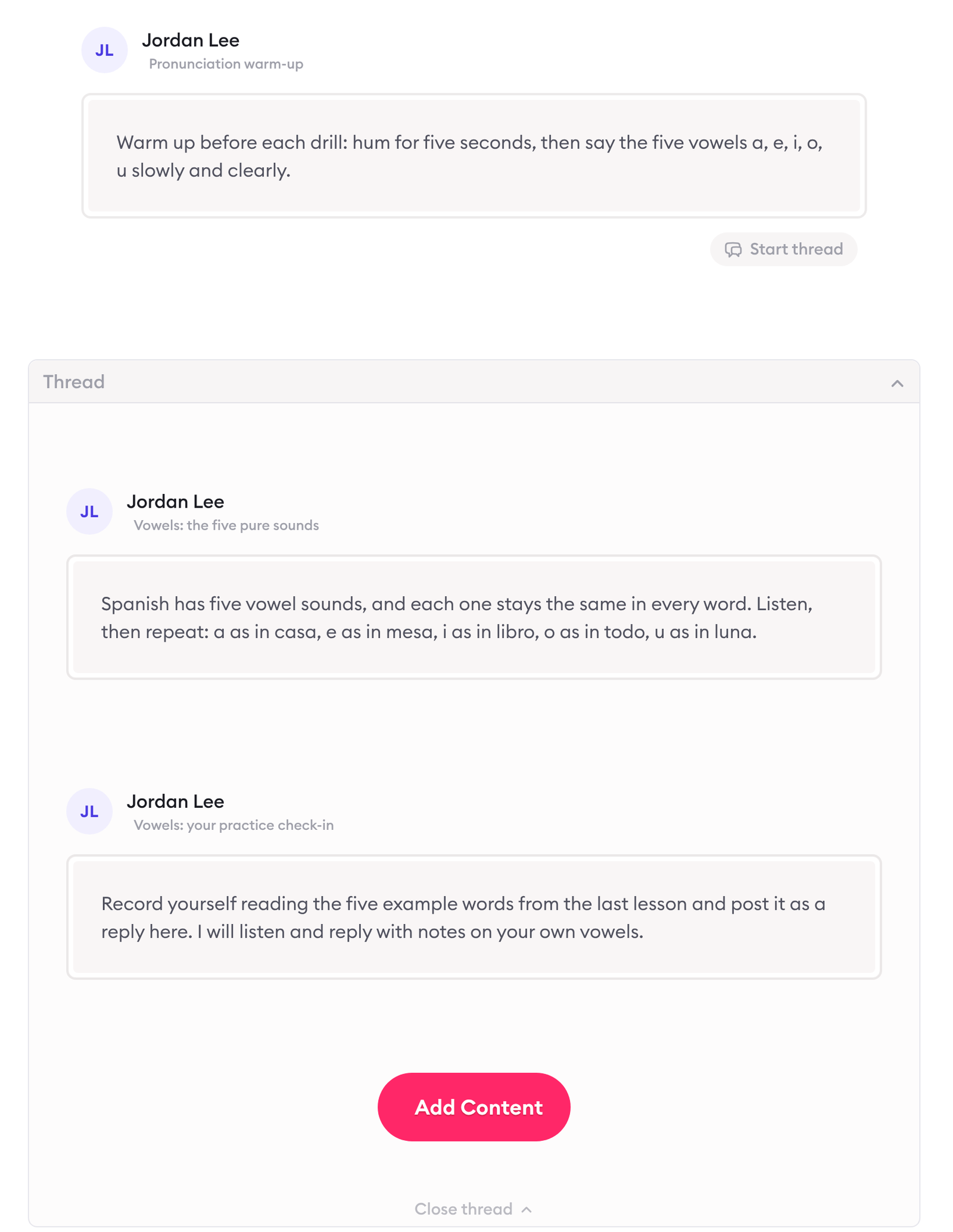
A course built from a message template (a lesson) and a thread template (a module). Screen captured October 2026 with sample content.
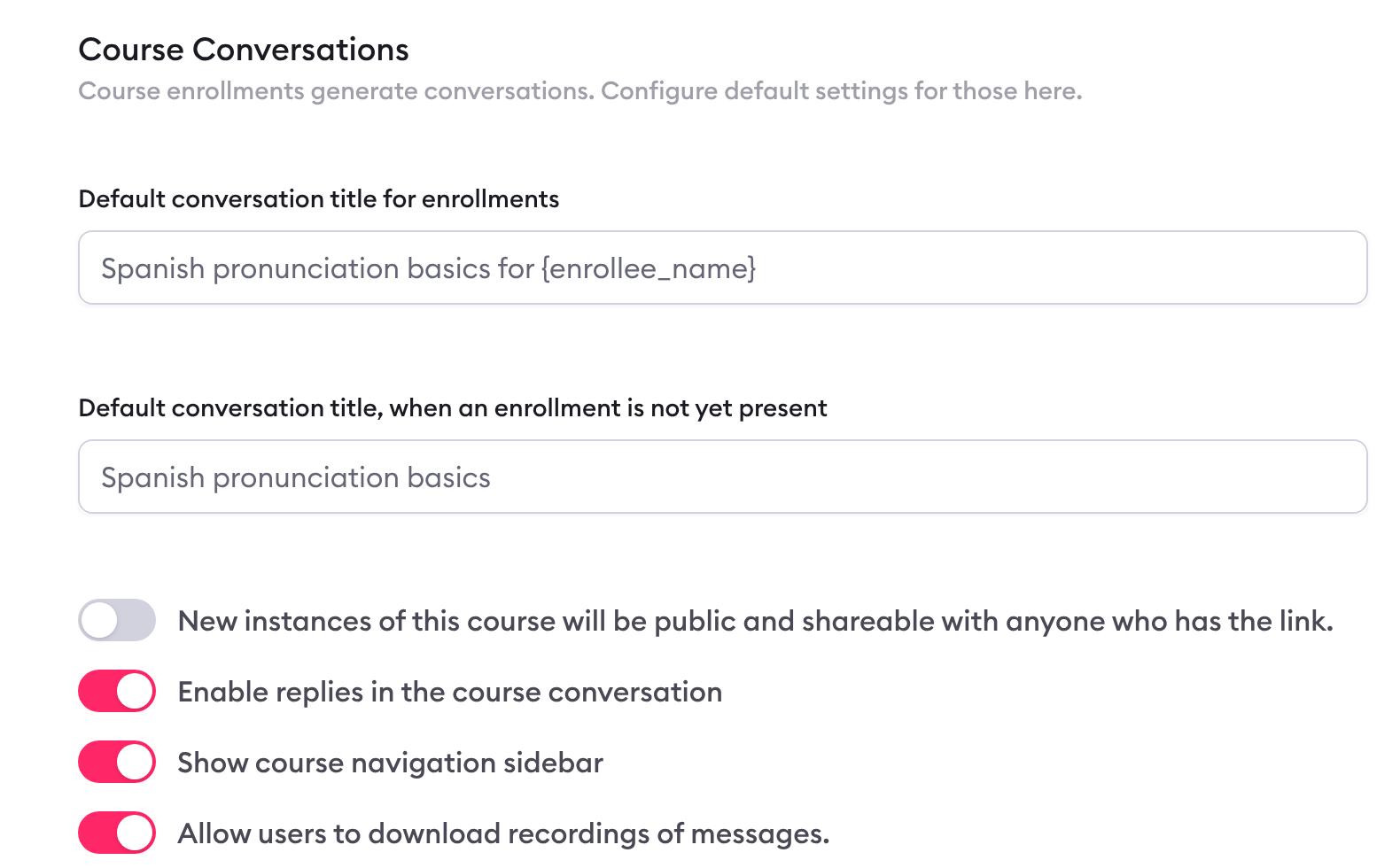
Keeping each enrollment private in a course's settings. Screen captured October 2026 with a sample course.
6. Optional: send one lesson to many clients at once
Depending on your plan, open the template's three-dot menu and choose "Broadcast to Conversations…". Pick the conversations by tag, course, group or one by one, and choose when it posts: now, at a date and time, or after a delay. Review and send. Each client gets it as a normal message in their own conversation; reply to each one personally as in step 4. See how to broadcast a template to conversations.
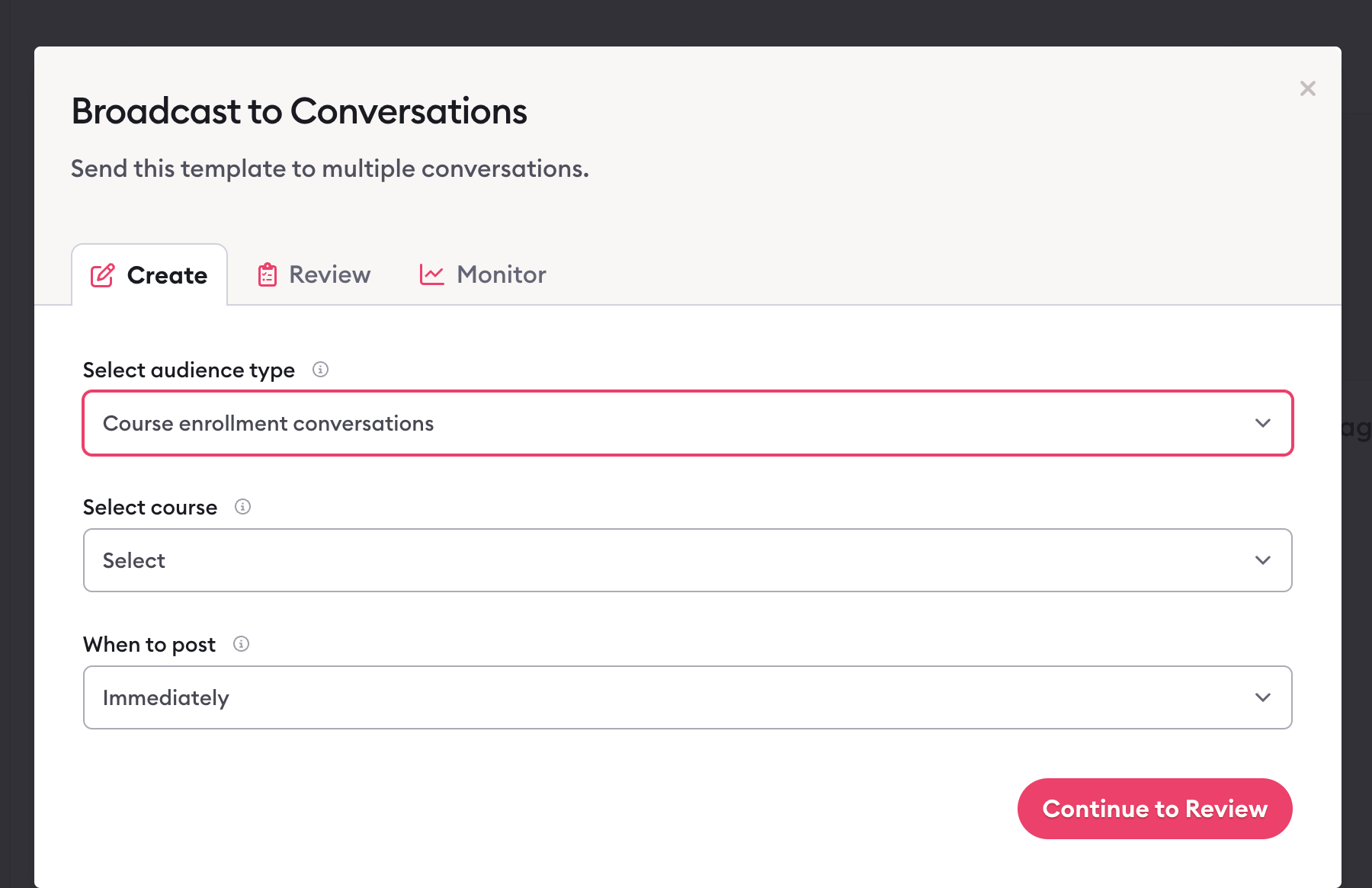
Choosing who receives a broadcast and when. Screen captured August 2026.
7. Keep your Library tidy
Duplicate a template to make a variant for a different kind of client, find templates with Library search, and choose which team members can use each template (Message Template Access). See how to duplicate a message template.
Limits of this guide: the steps describe Clarityflow as documented in its help guides on October 26, 2026, and menus can change. Which plans include thread templates, courses and broadcasts, and how many, are on the pricing page.
Facts about reusing lessons in Clarityflow
Fact | Detail |
|---|---|
Message templates | On every plan, stored in your Library and inserted into any conversation |
What a template can hold | Recordings, text, files, forms and tasks |
Thread templates | Insert several messages as one thread, depending on your plan |
Threaded replies | Under any message, on every plan |
Private conversations | Private and invite-only, with unlimited clients and conversations on every plan |
Courses | Each enrollment is the enrollee's own conversation; courses depend on your plan |
Which plans include thread templates, courses and broadcasts, and current limits |
Facts checked October 26, 2026.
When not to use templates
Every client needs a different answer. Record a fresh message instead of a template.
Only a personal reply fits. A template or a broadcast sends the same content to everyone, so don't use one where the client is waiting for an answer about their own situation.
The client needs an answer right now. A real-time back-and-forth belongs on a live call; see how asynchronous coaching fits between sessions.
Frequently asked questions
What's the difference between a conversation and a course?
A conversation is where you and a client swap messages. A course is a sequence of lessons many people can enroll in, and every enrollment is its own conversation where the enrollee goes through the content and talks with you. Which plans include courses is on the pricing page.
See lesson reuse in Clarityflow
See how Clarityflow keeps your reusable lessons in one Library and each client's feedback in their own conversation.

Learn more about Clarityflow.