
Message Replies & Threaded Replies Settings
How Conversation Replies Work
Clarityflow conversations have two ways people can participate:
Top-level messages — new posts in the main conversation (like starting a new topic).
Thread replies — responses tucked under a specific message (like commenting on one of your videos).
This guide explains who can do what, and how the settings work together. If you've ever wanted clients to respond to your content without taking over the conversation, these are the settings that make that possible.
Who this applies to: The rules below are mainly for clients and guests. Team members on your account can always post messages and replies, even when these settings are restrictive — so you can still coach and manage the conversation without getting locked out.
Why coaches use these settings
Many coaches use Clarityflow for async coaching: clients watch a video, reply with questions, and you respond when it works for you. These settings let you shape that flow — for example, keeping a course structured so clients reply to your lessons without starting unrelated new topics, or closing a conversation cleanly when a program has ended.
What you can control
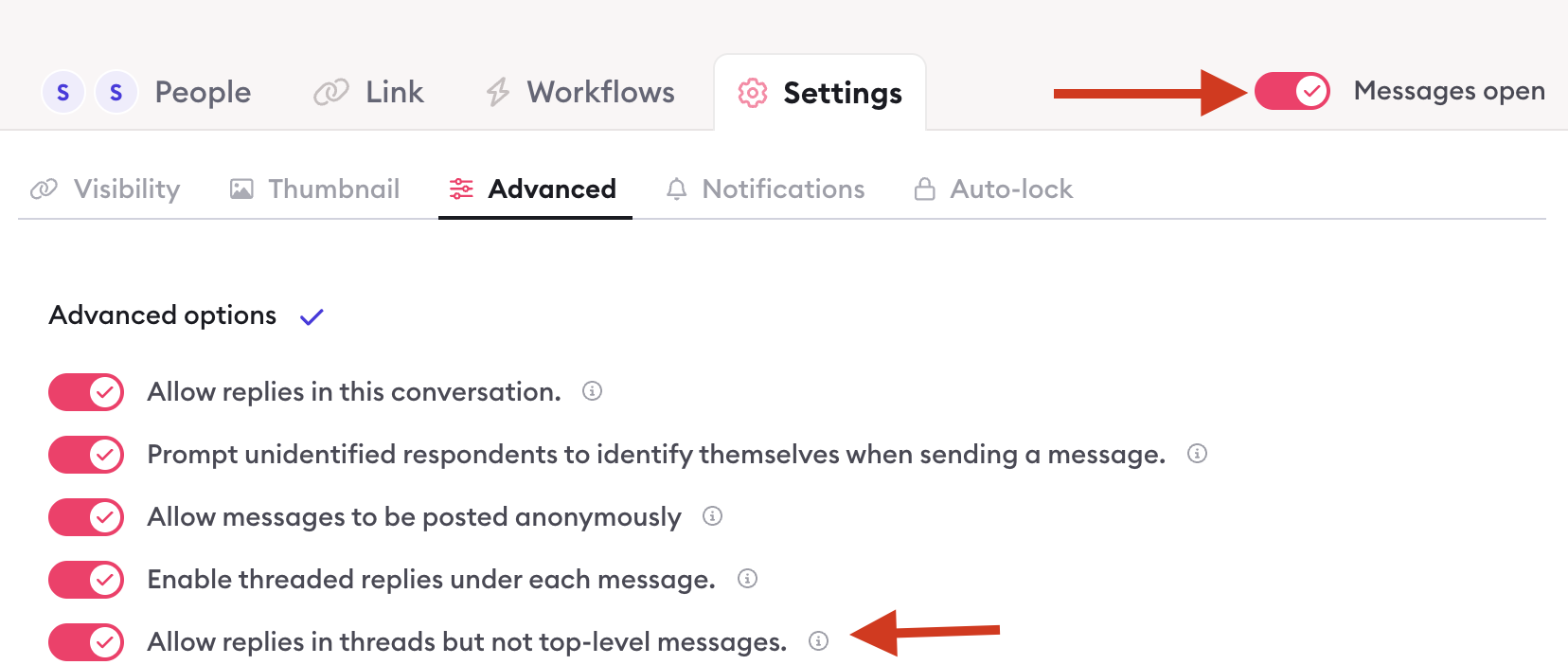
There are three settings that control how replies work in a conversation. The master switch controls whether the conversation is open at all, a second setting limits clients to thread replies only, and a third lets you close replies on one specific thread without affecting the rest.
When Messages open is ON
Clients can post both top-level messages and threaded replies, unless a specific thread has replies closed — then they cannot reply in that thread.
For example, if you run an open coaching conversation where clients can ask new questions anytime and reply under your weekly check-in videos, this is the default setup for that.
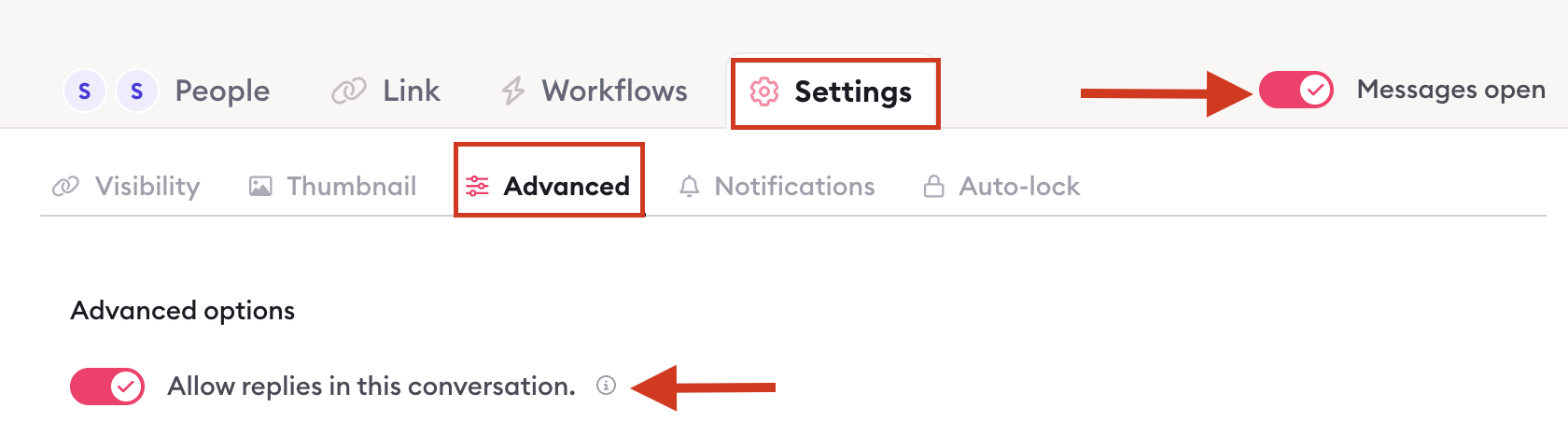
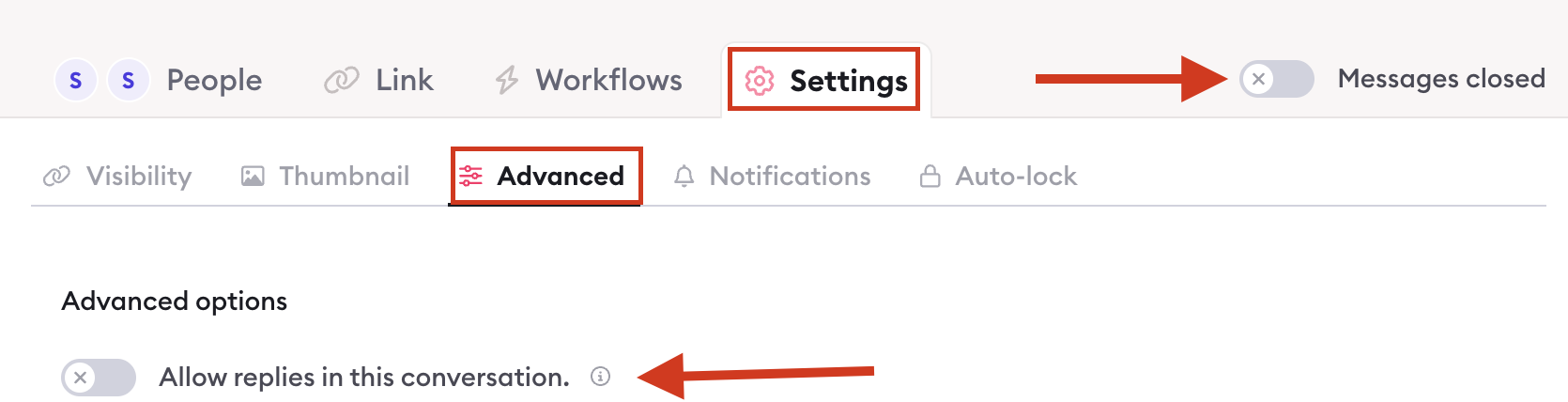
When Messages open is OFF
Clients cannot post anything — no top-level messages and no thread replies. This overrides everything else, even if other settings are turned on.
For example, if you've finished a program and want the conversation to stay visible as a record, turning Messages off keeps it accessible to everyone. You can still add messages as the coach, but clients cannot post anything new — making it a clean record of the engagement.
When all three are ON
Messages open
Allow replies in threads but not top-level messages
That thread's replies are open
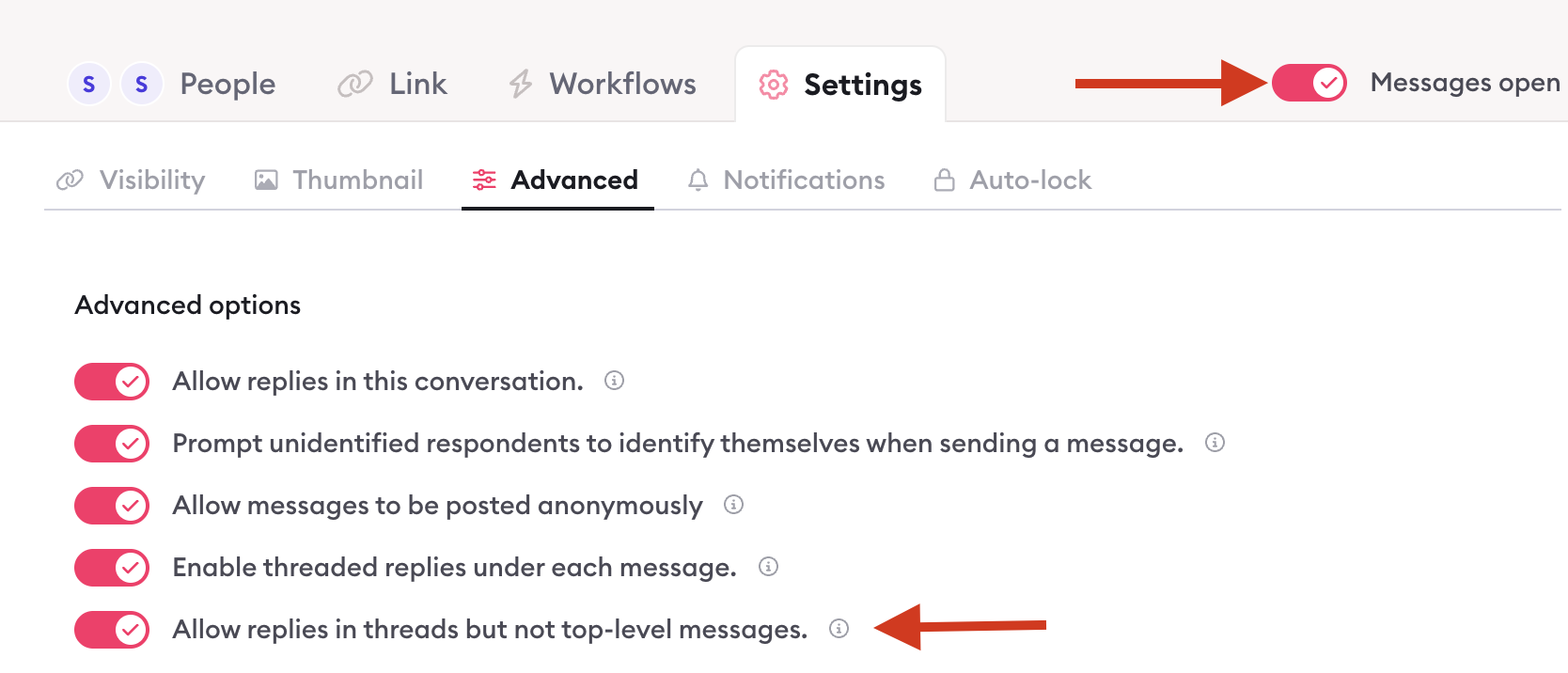
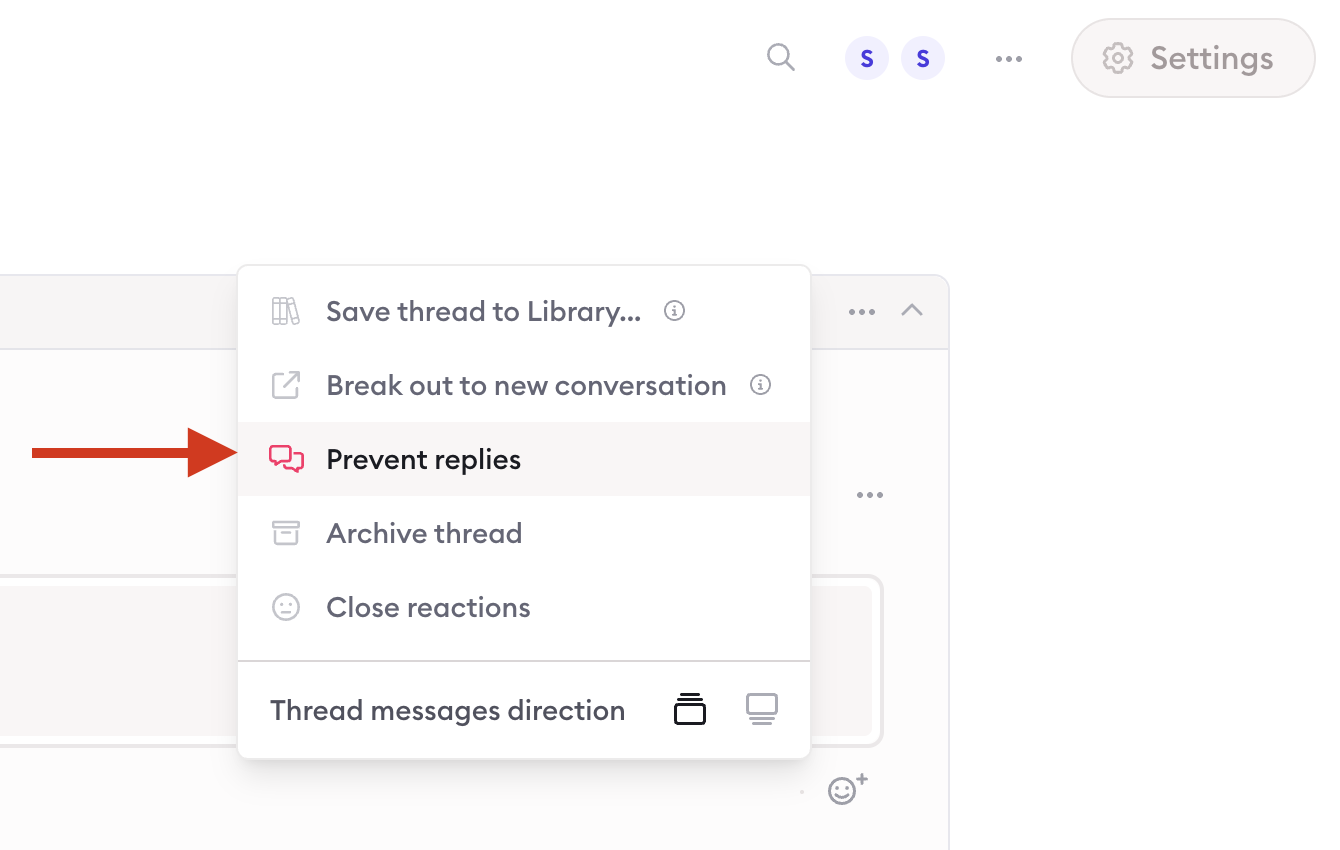
Clients cannot post new top-level messages, but can reply inside open threads. This is the most common setup for structured courses or group programs — clients respond under your lesson videos without driving the main conversation.
When Messages open + "threads only" are ON, but every thread is closed
Clients cannot post top-level messages or replies anywhere — there is no open thread to reply in. This can happen at the end of a cohort when you've closed replies on every lesson thread. Clients won't see anywhere to post until you reopen at least one thread.
Priority (what wins)
Messages closed → blocks everything for clients.
A specific thread closed → that thread blocks replies, even if conversation-level settings would otherwise allow them.
Threads only → only applies when Messages open is ON; limits clients to thread replies only.
For example, if you have "threads only" enabled for a group program but close replies on Week 1's thread because that module is done, clients can still reply under Week 2's video but not under Week 1 — without changing any other program settings.
Quick reference
Setup | Can clients post a new top-level message? | Can clients reply in a thread? |
|---|---|---|
Messages open | Yes | Yes (if thread is open) |
Messages closed | No | No |
Messages open + threads only | No | Yes (in open threads) |
Messages open + one thread closed | Yes | No in that thread; yes in others |
Messages closed + thread open | No | No |
Where to change these
Setting | Where |
|---|---|
Messages open | Conversation → Settings Modal → Settings → Advanced |
Threads only — for one conversation | Conversation → Settings Modal → Settings → Advanced |
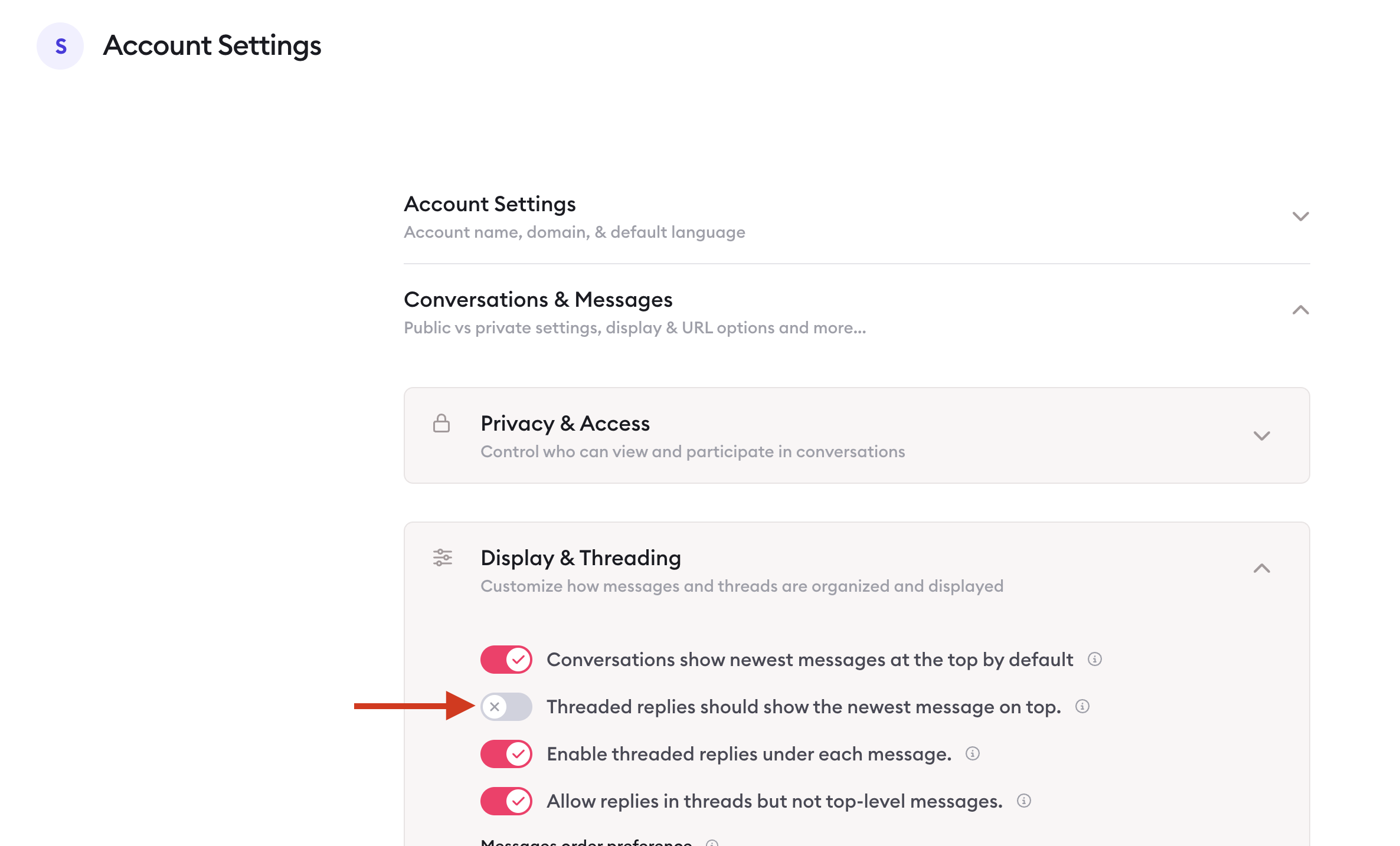
Threads only — for all new conversations | Account Settings → Conversations & Messages → Display & Threading |
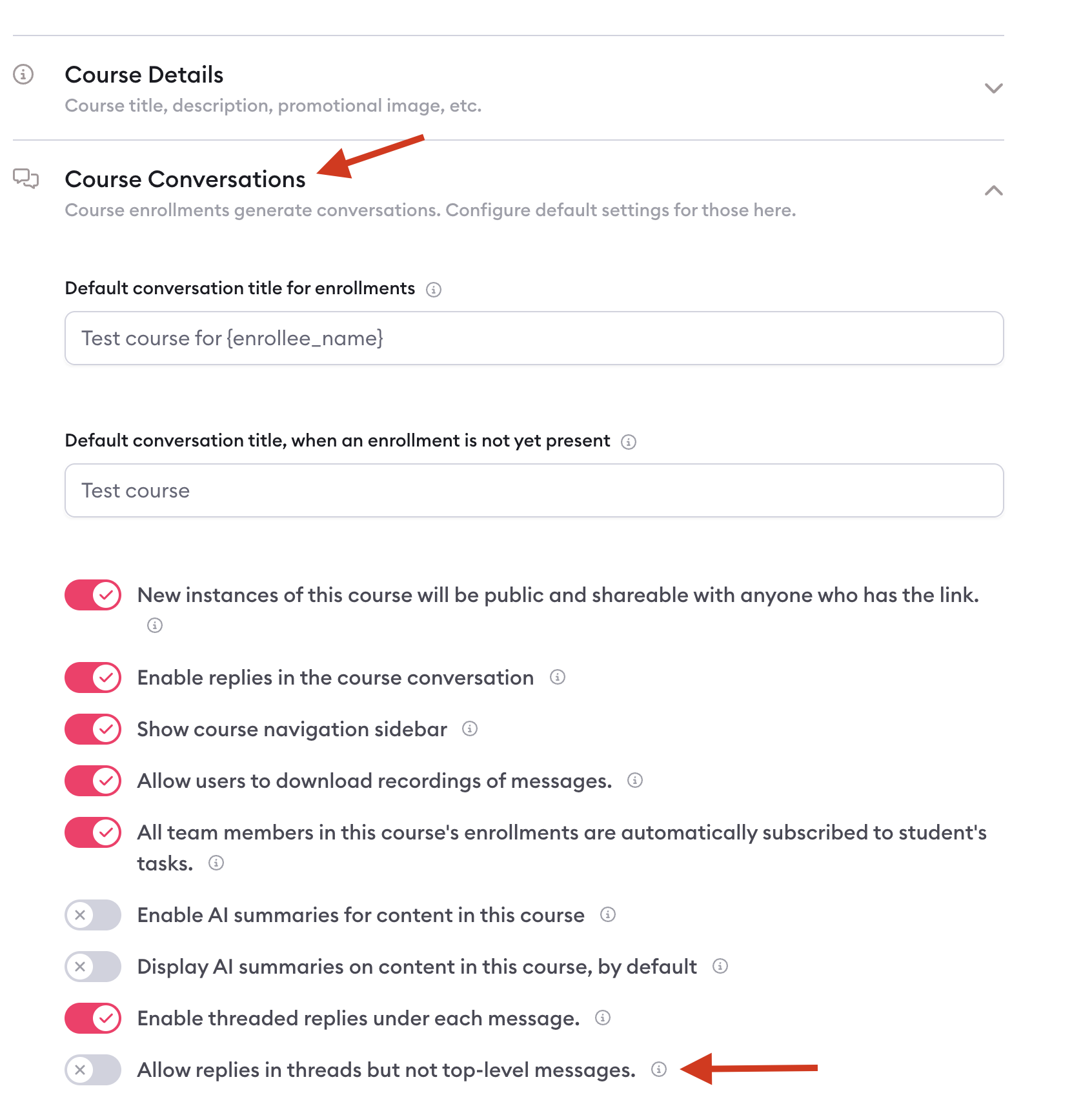
Threads only — for a course | Course → Course Settings → Course Conversations |
Close one thread | Thread settings → Prevent replies / Allow replies |
If you're unsure which setting to use, start with the conversation-level controls — they give you the most flexibility without affecting the rest of your account. And remember, as a team member you can always post into a conversation regardless of how these settings are configured, so you won't get locked out of your own client work.

Learn more about Clarityflow.