
What is asynchronous coaching, and how do you run it between sessions?
Asynchronous coaching is coaching through recorded video, voice and text messages that coach and client send and answer at different times, between or instead of live calls. Each client keeps one ongoing conversation, so the coach replies when it suits them and every past answer stays in one place. It suits questions, feedback on assignments and check-ins.
Updated · By Clarityflow
This guide is published by Clarityflow, the async coaching software used in the steps below; the steps follow Clarityflow's help guides.
Asynchronous versus live coaching
In live coaching, coach and client are present at the same time, on a call or in person. In asynchronous coaching, one side sends a message and the other answers later. Email works this way: you can answer straight away, or hours later. Asynchronous coaching uses the same rhythm, but the messages can be recorded video and voice as well as text, so the client still sees and hears their coach.
Asynchronous coaching works well alongside live sessions. Keep live calls for the deep work that needs real-time conversation, and use the async conversation for everything in between: questions, practice, feedback and check-ins.
When asynchronous coaching works
Answering client questions without booking a call. A client asks when the question comes up, and the coach answers when they next have time, without either of them waiting for the next session.
Feedback on assignments. The coach explains an assignment in a short video, and the client replies with their attempt. For example, a language coach asks students to record themselves saying a set of phrases and replies with pronunciation notes; a sales coach asks reps to record how they would handle a buyer objection from the last session and gives feedback on each recording.
Updates to a group. The coach posts one message in a group conversation, and each member watches and replies when it suits them, without scheduling a group call across calendars and time zones.
Moments as they happen. A coach is rarely there when the client's problem shows up. With async video, the client can record it in the moment. For example, a pet trainer asks owners to record the behavior they are working on, so the coaching starts from what actually happens at home.
“I've deeply fallen in love with Clarityflow. When people have questions, I can deliver answers without booking a call.”
— Chris Lema, Business Coach
Before you start
What you need: any Clarityflow plan. Every plan includes unlimited clients and unlimited conversations, so each client can have their own.
What you'll have at the end: a between-session routine where each client has one ongoing conversation, you answer at times you choose, and your past answers stay easy to find.
How to run asynchronous coaching in Clarityflow, step by step
1. Give each client one private conversation
Invite the client from your Contacts or from inside a conversation, and choose a new conversation as the place they land after accepting. Name it after the client, and keep every message for that coaching engagement there. One conversation per client means one record of everything you have discussed, instead of advice scattered across email threads. See how to invite and onboard a client.
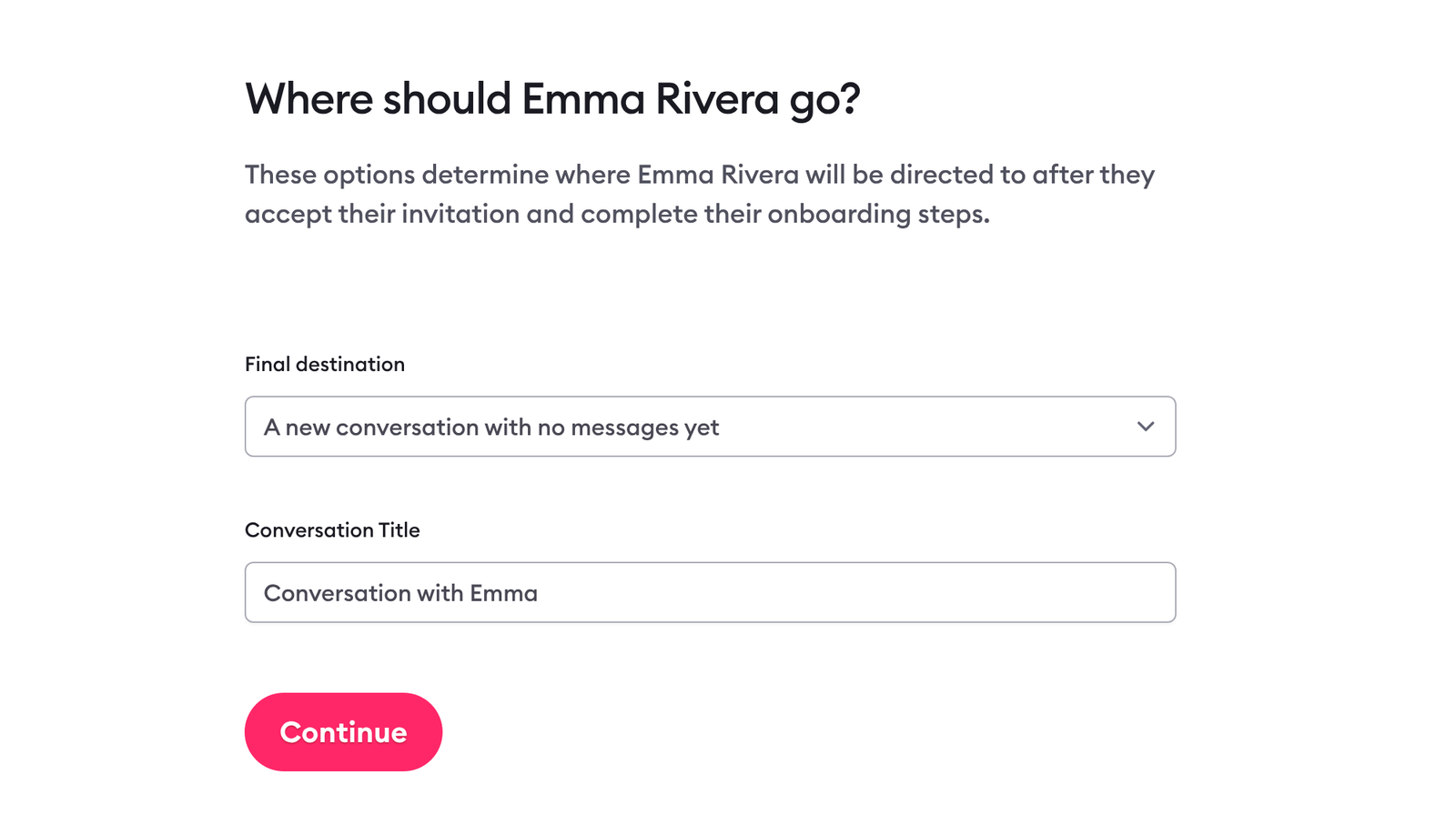
Choosing where a sample client lands after accepting an invitation. Screen captured October 2026 with sample names.
2. Record or write your message
Record your camera, your screen or your voice, or type a text message. Use video when the client needs to see you or something on your screen, such as feedback on their work; voice for a quick thought; and text for links and short answers. See how to record your first message.
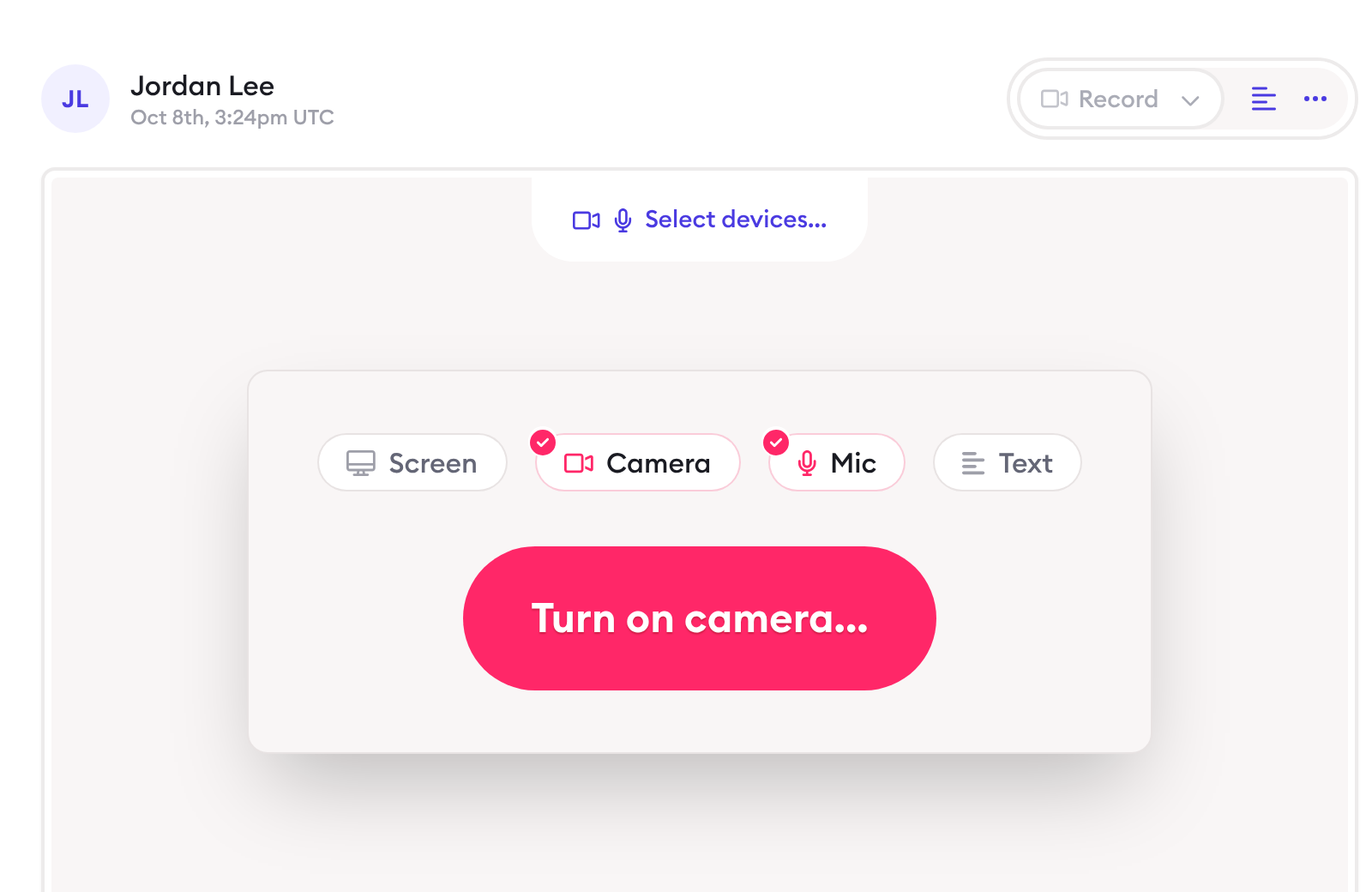
Choosing what to record in the Clarityflow web composer. Screen captured October 2026 with sample names.
3. Let the client reply when it suits them
The client answers in the same conversation from a web browser, from the Clarityflow iPhone or Android app, or by replying to the Clarityflow notification email from their own email client. An email reply's text is posted in the conversation as a text message. See replying by email and using Clarityflow on mobile.
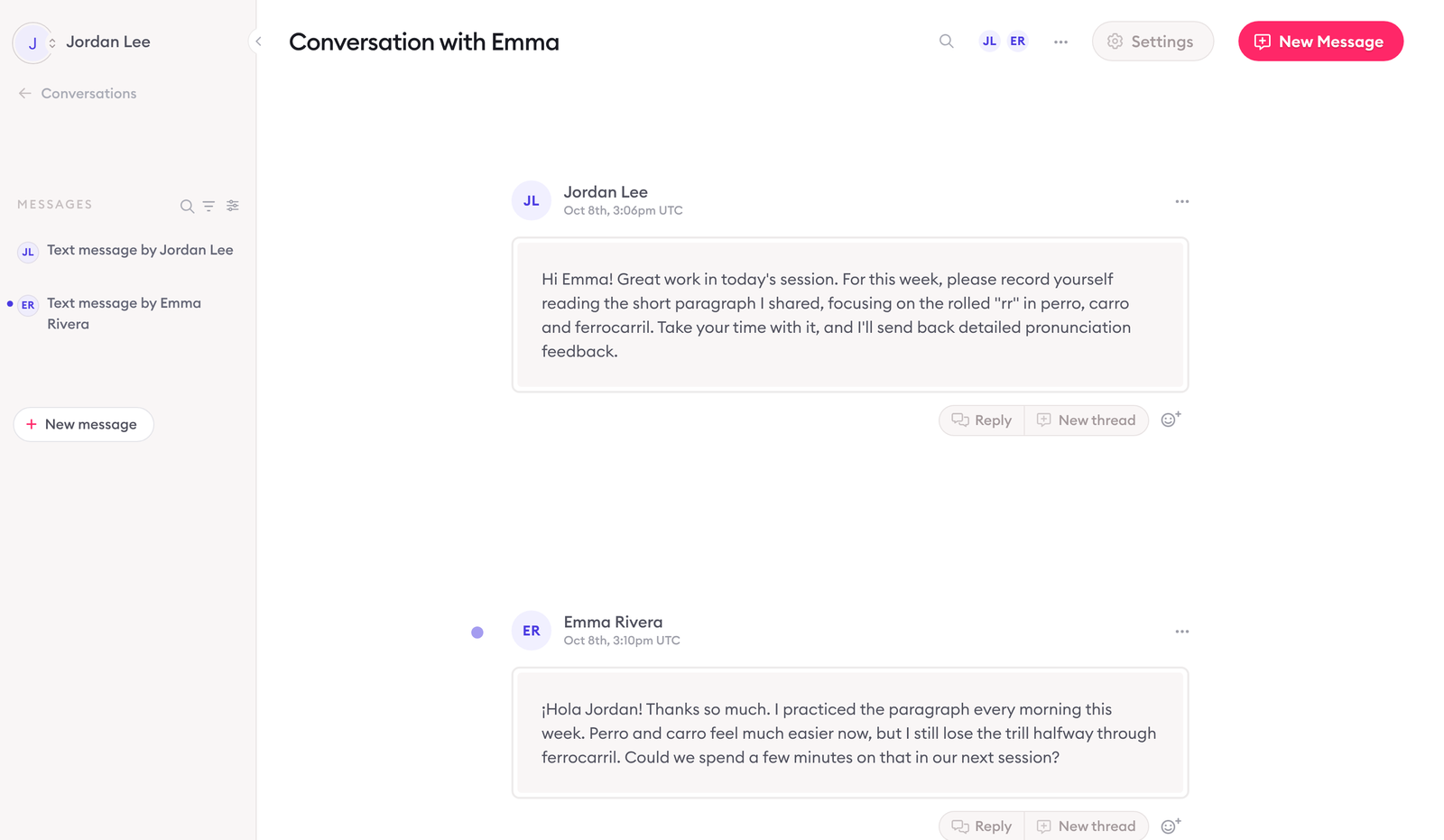
A sample client's reply arriving in their conversation. Screen captured October 2026 with sample names and content.
4. Answer under the message you're responding to
Use threaded replies to answer a specific video or question directly underneath it, so each topic keeps its own thread. When a coaching engagement ends, turn off Messages for that conversation: clients can no longer post new messages or replies. See message replies and threaded replies settings.
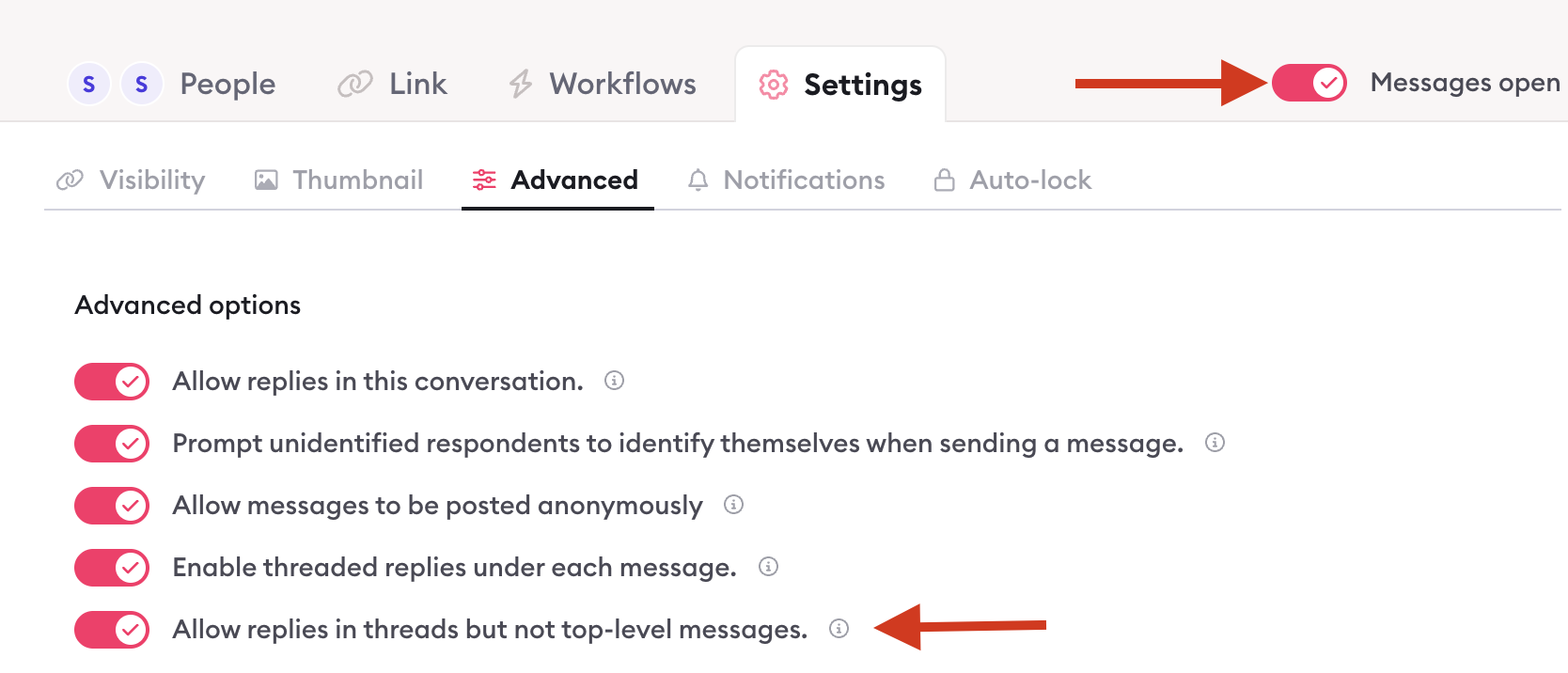
Conversation settings with Messages open and threaded replies turned on. Screen published May 2026.
5. Reuse your best explanations
When you give the same explanation, advice or assignment again and again, save it once as a message template in your Library. Insert it into the next client's conversation, then add a short personal note so it still answers their situation. See how to build your Library. For lessons you reuse with many clients, here's how to reuse video lessons and message templates and still give personal feedback.
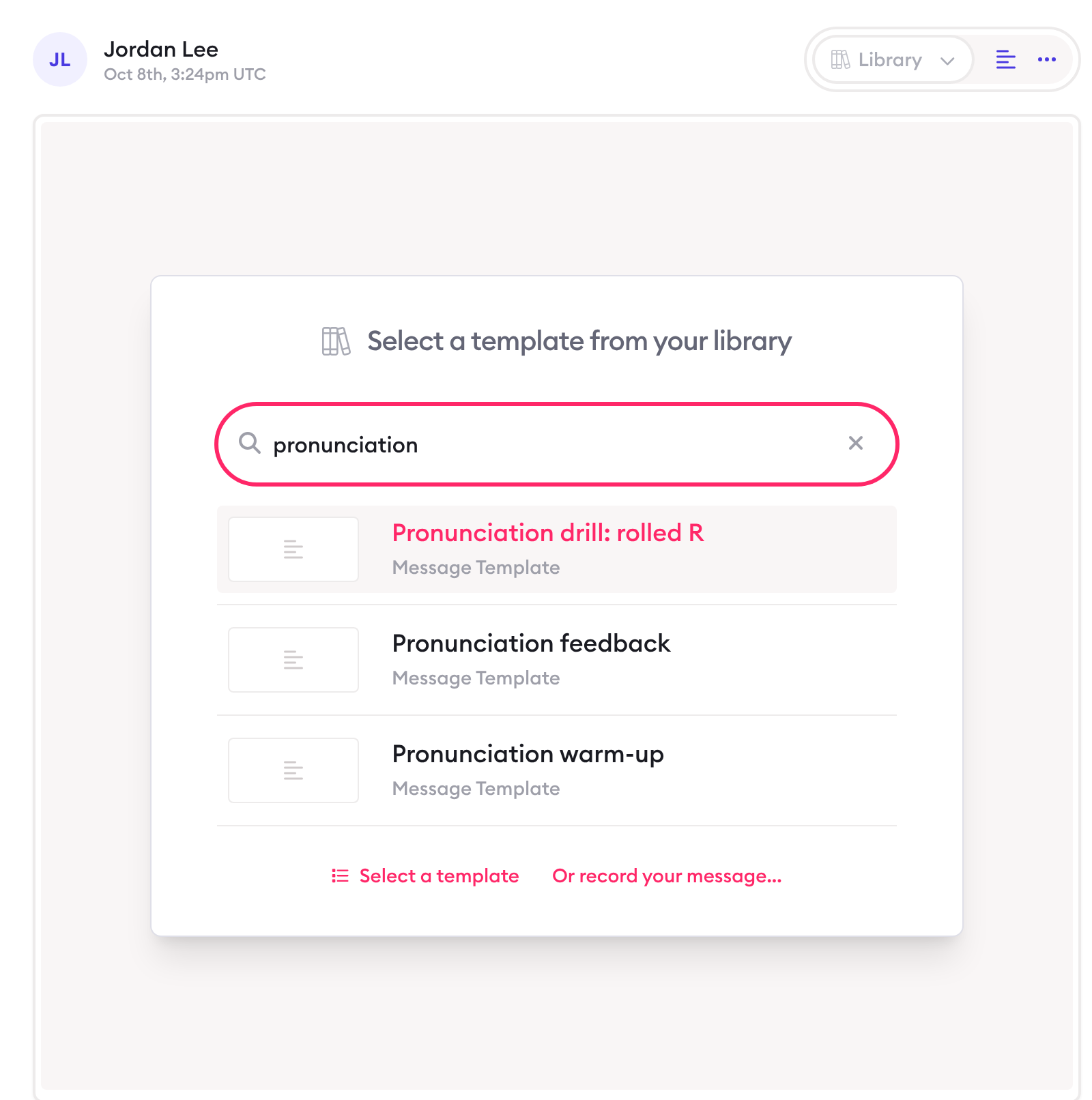
Inserting a saved message template from the Library. Screen captured October 2026 with sample content.
6. Find past advice with search
Search covers conversation and message titles, message text and the automatic transcripts of video and audio recordings, so you can find what you told a client by a phrase you said out loud. See how to search conversations and messages.
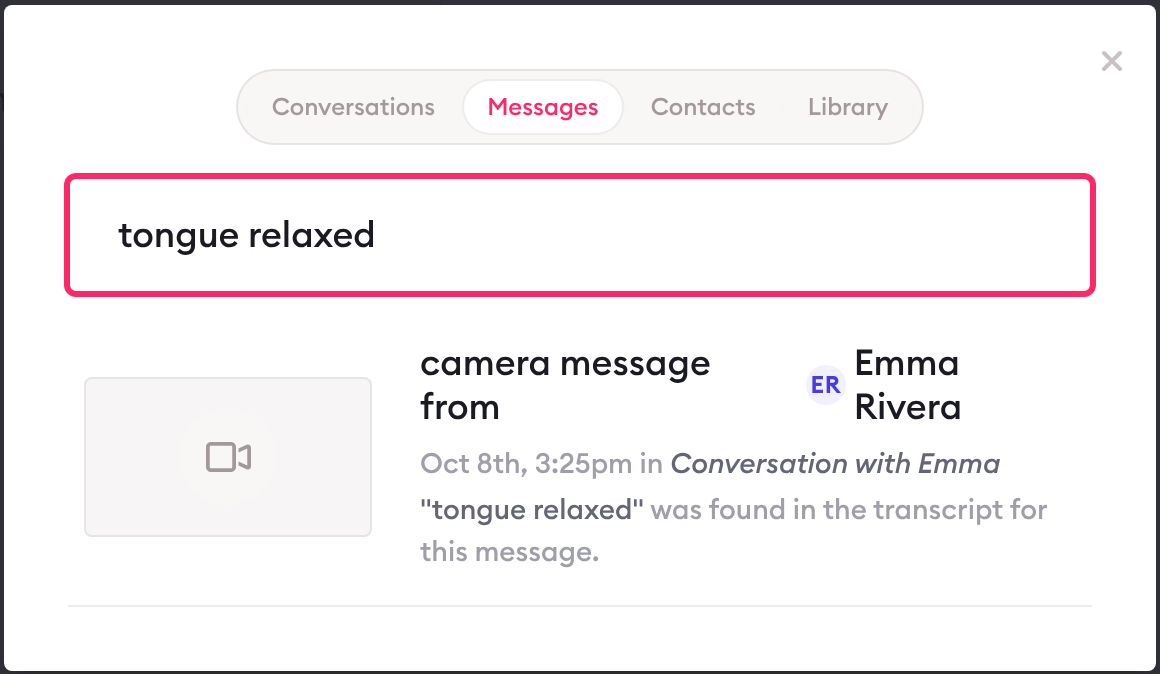
Finding a phrase said out loud in a recording's transcript. Screen captured October 2026 with sample names and content.
7. Add automation if your plan includes it
Depending on your plan, you can also add AI summaries of long messages, schedule messages and automate follow-ups. See pricing for which plans include them.
Limits of this guide: the steps describe Clarityflow as documented in its help guides on October 8, 2026, and menus can change; the coaching examples above are illustrations, not measured results.
What Clarityflow includes for async coaching
Feature | What it does |
|---|---|
Message types | Camera, screen, voice-only and text messages |
Transcripts and search | Recordings are transcribed automatically; search covers titles, message text and transcripts |
Threaded replies | Reply under any message; close messages when an engagement ends |
Email replies | Reply to a Clarityflow notification email and the text is posted in the conversation |
Apps | Web and mobile web, plus native iPhone and Android apps |
Library | Save message templates and insert them into conversations |
Intake pages | A public page where a new client records a message and starts a new conversation, seen by default only by them and you |
Clients and conversations | Unlimited on every plan |
Which features each plan includes |
Facts checked October 8, 2026.
When not to use asynchronous coaching
Urgent or crisis situations. Async messages are answered later by design. Anything that needs an immediate answer needs a phone call or another urgent route, and clients should know what it is.
Conversations that need real-time back-and-forth. A difficult conversation, or a session where each answer changes the next question, belongs on a live call.
Clients who won't record or read messages between sessions. Async coaching only works if both sides take part. If a client never opens the conversation, keep their coaching to live sessions.
If you're deciding which Clarityflow plan fits, see how Clarityflow's plans differ and current prices on the pricing page.
Frequently asked questions
Can clients reply by email instead of opening a portal?
Yes. Anyone in a Clarityflow conversation can reply to a Clarityflow notification email from any email client, and the text of their reply is posted in the conversation as a text message. See replying by email.
See asynchronous coaching in Clarityflow
See how Clarityflow works for async coaching, from the first message to the tools around it.