
How do I sell coaching packages, subscriptions and payment plans in Clarityflow?
Clarityflow sells coaching through Clarityflow Commerce and your own Stripe account. Give a product a one-time price for a package, a recurring price for a subscription, or a recurring price that ends after a set number of payments for a payment plan. Clarityflow charges no transaction fees; Stripe's processing fees apply. The pricing page shows which plans include Commerce.
Updated · By Clarityflow
This guide is published by Clarityflow, the coaching software used in the steps below; the steps follow Clarityflow's help guides and its current settings screens.
Which to use for your offer
Offer | What the client pays | The setting |
|---|---|---|
Package, for example a six-session coaching package | Once | A one-time price |
Subscription, for example monthly async support between calls | Every so many days, weeks, months or years, until the subscription is cancelled (clients can cancel in their billing portal) | A recurring price, optionally with a free trial for your client |
Payment plan, for example a three-month program paid monthly | A set number of times, then it stops | A recurring price set to end after a number of payments, or after a period of time |
A product can also be free, with no price, or carry several prices so clients choose, for example paying in full or in installments.
Facts about selling in Clarityflow
Fact | Detail |
|---|---|
Clarityflow transaction fees | None. Stripe's own processing fees apply |
Where payments go | Your own Stripe account, which you connect or open from Clarityflow |
Price types | One-time, recurring subscription (with an optional free trial for your client), and payment plans that end after a number of payments or a period of time; free products too |
What a purchase can do | Start a conversation, add the client to a group or course, or send them to book an appointment |
What clients see | A billing portal for their purchases, payment history, subscriptions and saved cards |
Commerce availability | Depending on your plan |
Clients and conversations | Unlimited on every plan |
Which plans include Commerce, product allowances and current prices |
Facts checked November 2, 2026.
Before you start
What you need: a Clarityflow plan that includes Commerce (check pricing, or read how Clarityflow's plans differ), and a Stripe account. If you don't have one yet, you can open one from Clarityflow (step 1).
What you'll have at the end: a product clients can buy from a page, a button on your site or a message in their conversation, which gives them access in Clarityflow automatically when they pay.
How to sell a package, subscription or payment plan, step by step
1. Connect your Stripe account
Go to Account settings › Stripe account. If you already use Stripe, select "Connect your Stripe Account". If you don't, select "Open your Stripe Account" and follow Stripe's sign-up. Payments go straight to your own Stripe account, and Clarityflow keeps your products, prices, purchases and customers in sync with it. See Clarityflow's Stripe integration.
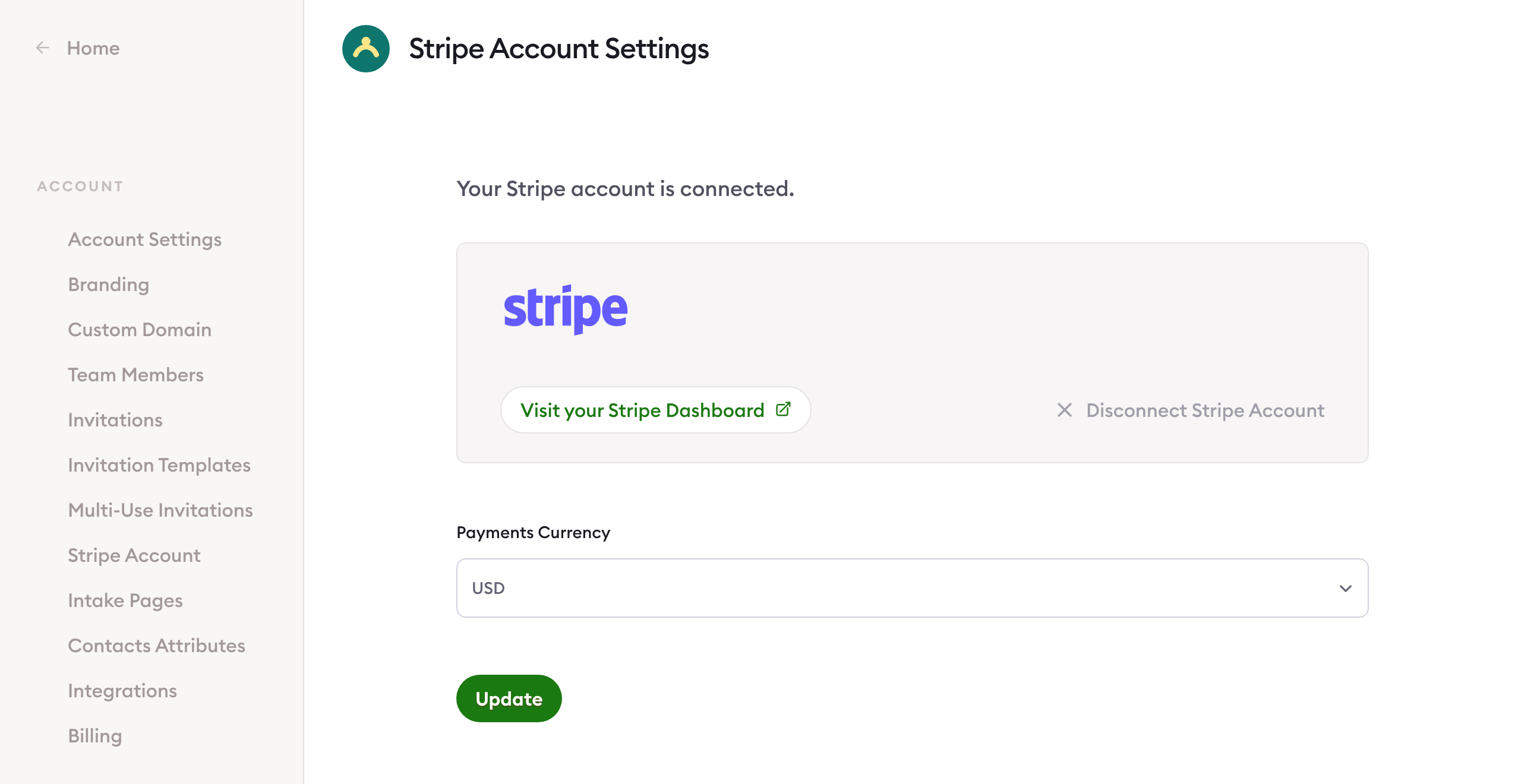
Account settings › Stripe account, connected. Screen captured November 2026; the Stripe account ID is hidden.
2. Create the product
Go to Commerce › Products and select "Create a new product". Name it for the offer as clients will see it, for example "Six-session coaching package".
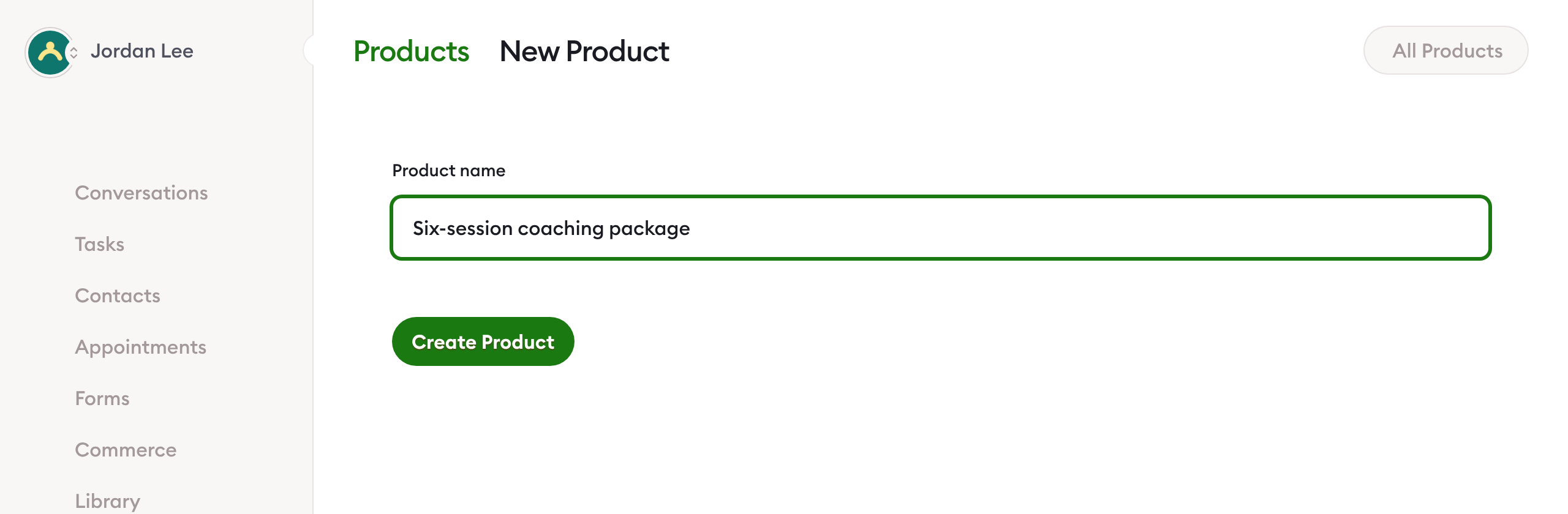
Commerce › Products, a new product. Screen captured November 2026.
3. Add the price for your offer
Add a price to the product, then set it up for the shape of your offer:
Package (one payment): leave "This price is a recurring subscription..." turned off.
Subscription: turn on "This price is a recurring subscription..." and choose how often, under "Payments recur every...", in days, weeks, months or years. To give your client time before the first charge, turn on "This subscription should have a free trial..." and set the trial length in days.
Payment plan (installments): set up a recurring price, then turn on "End the subscription after a number of payments…" and enter the number of payments. Or turn on "End this subscription after a period of time..." instead.
Payments are taken at the start of each period. For example, a price charged every month that ends after 3 payments bills the client at the start of months one, two and three, then stops.
To let clients choose how to pay, add more than one price to the same product, for example one price paid in full and one paid in installments.
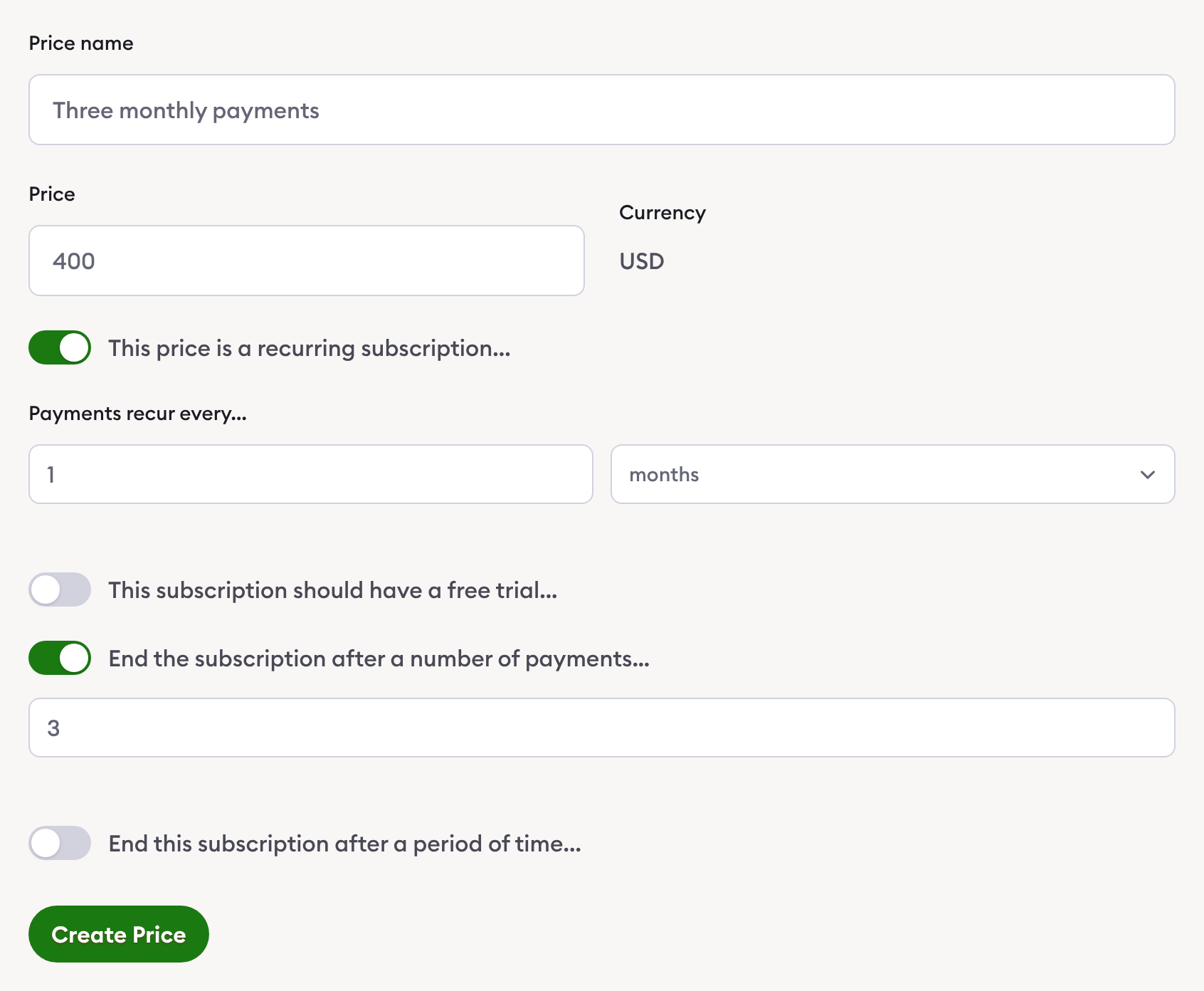
A payment plan of three monthly payments, with a sample amount. Screen captured November 2026.
4. Decide what the purchase gives your client
In the product's Actions section, select "Add a purchase action" to choose what happens when someone buys:
"Create a conversation", or "Add customer to an existing conversation"
"Add customer as a member in a group", or a cohort of a group
"Enroll in a course"
"Update a contact attribute for the customer"
"Allow the purchaser to post replies in the current conversation" (see how to charge for replies)
For a subscription or a payment plan, select "Add a subscription end action" to choose what happens when it ends, for example "Deactivate the customer's membership in a group", "Remove customer from conversation(s)", or "Change a setting on a conversation" to close replies. Groups and courses depend on your plan; see pricing.
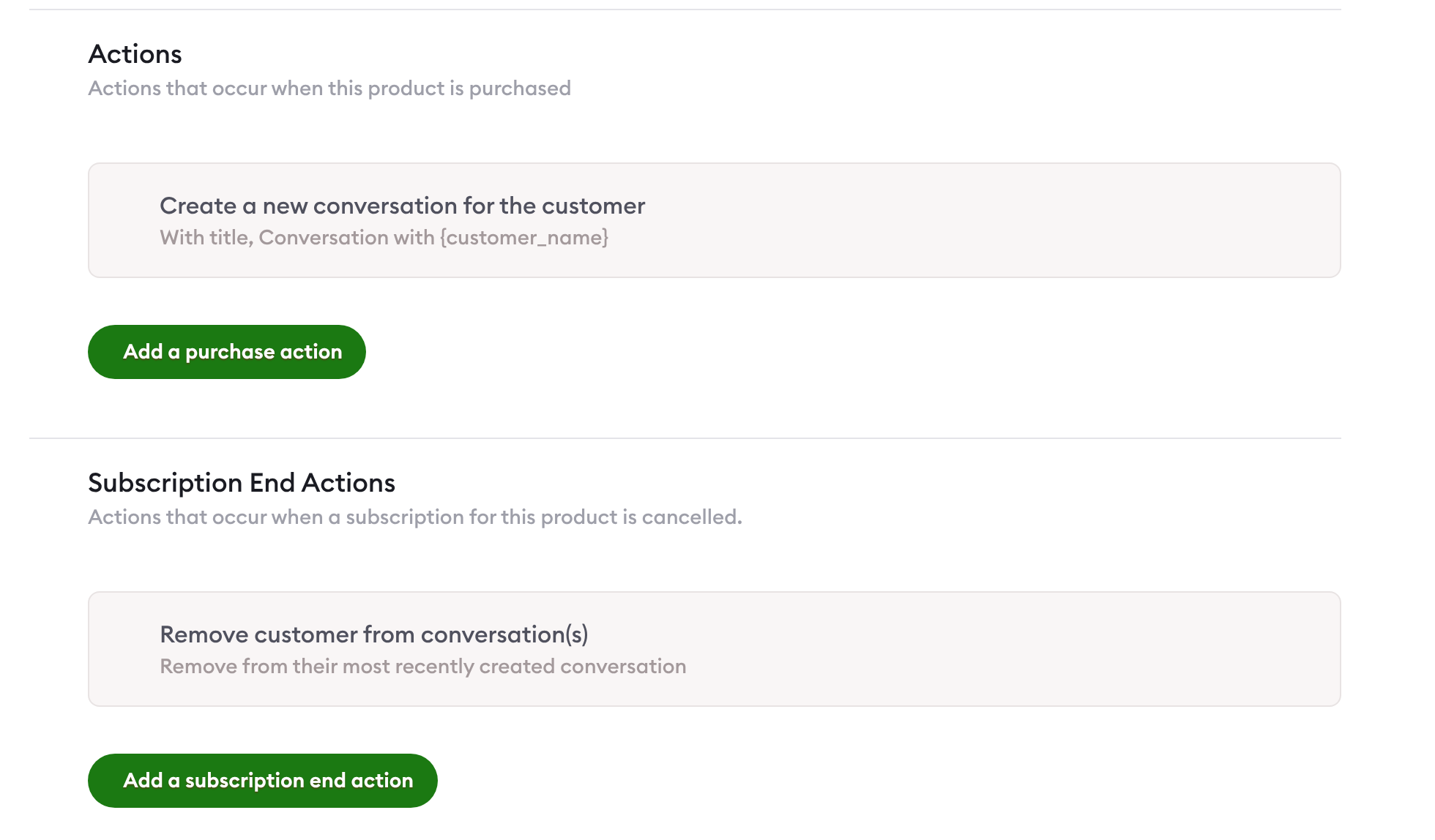
A purchase action and a subscription end action. Screen captured November 2026.
5. Choose what happens after checkout
Under After purchase, pick a Redirect Type: "Stay on page..." with a success message you write, "Go to a conversation...", "Go to a group...", "Go to a course enrollment...", "Appointment booking page..." or "Custom URL...". You can also send new purchasers through an onboarding flow (see how to customize the purchaser onboarding flow). To sell sessions that clients book after paying, see how to sell coaching sessions.
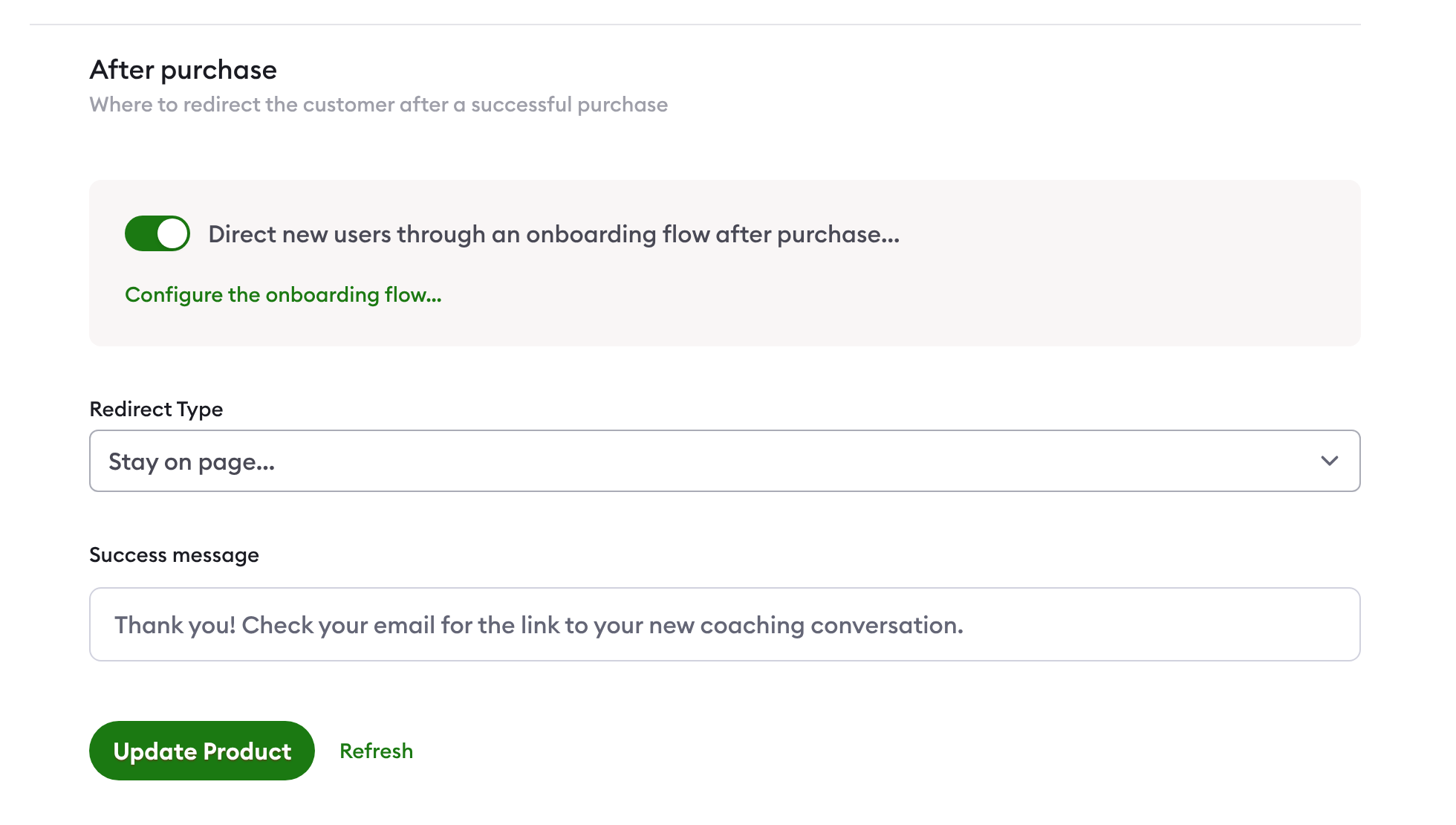
After purchase settings. Screen captured November 2026.
6. Put the offer in front of clients
A landing page: each product has its own page, with a purchase flow you set up.
Your own website, email or social media: embed the product's buy button or share its checkout link.
Inside a conversation: post a product offer in a client's conversation, and save it in a Library template to reuse with other clients.
To offer a discount, create a coupon in Stripe and choose whether the coupon field shows at checkout. See how to create coupon codes.
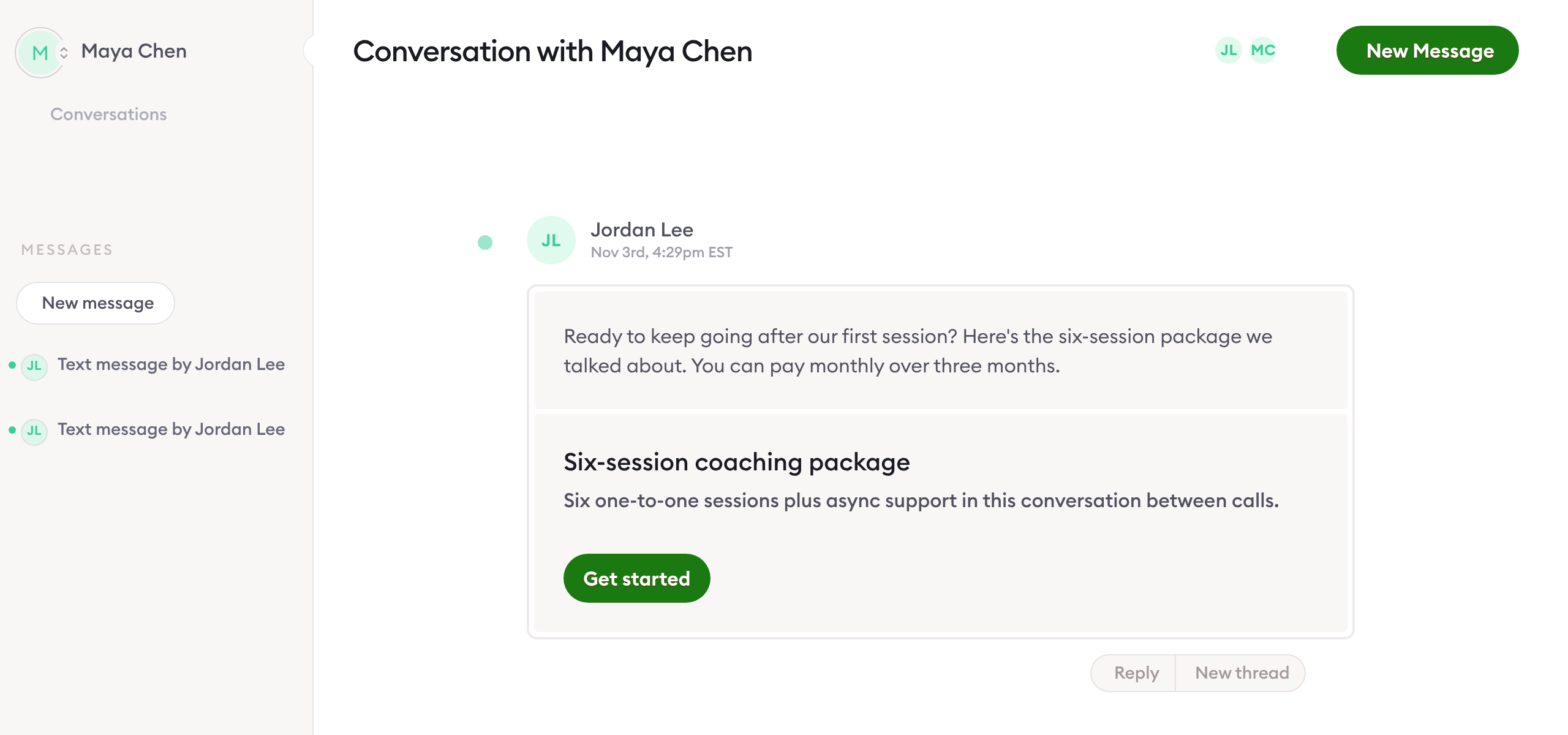
A product offer as the client sees it in their conversation. Screen captured November 2026 with sample names.
7. Manage sales and subscriptions
Commerce lists your customers, purchases, payments and subscriptions. Clients see their purchases, payment history, subscriptions (to cancel or update) and saved cards in their billing portal. If a recurring payment is declined, Clarityflow emails the client a link to fix it. For every setting, see the full Clarityflow Commerce guide.
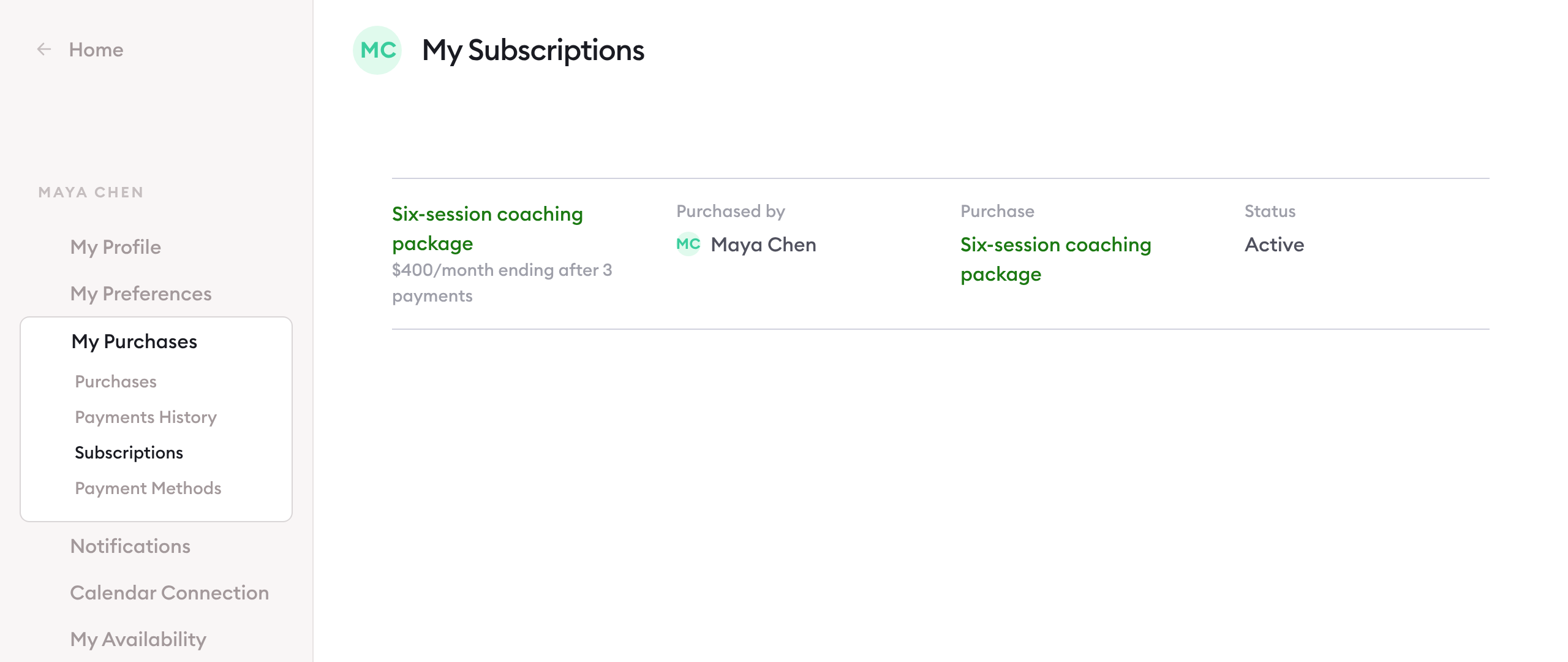
A client's billing portal. Screen captured November 2026 with sample names and amounts.
Limits of this guide: the steps follow Clarityflow's help guides and settings screens as of November 2026, and menus can change. Stripe sets its own processing fees and payment terms; see Stripe's pricing. Which plans include Commerce, and how many products each allows, are on the pricing page.
When not to use this
You can't or won't use Stripe. Commerce takes payments only through your own Stripe account.
Your plan doesn't include Commerce, or you need more products than it allows. Check pricing before you plan your offers.
You only send occasional one-off invoices and don't need access tied to payment. Your existing billing tool may be simpler; Commerce earns its place when paying should open a conversation, group, course or booking.
Frequently asked questions
Does Clarityflow take a cut of my sales?
No. Clarityflow charges no transaction fees on Commerce sales. Payments go to your own Stripe account, and Stripe's own processing fees apply; see Stripe's pricing. Your Clarityflow cost is your plan, shown on the pricing page.
Which plans include Commerce?
It depends on your plan. The pricing page shows which plans include Commerce and how many products each allows.
Can clients pay in installments?
Yes. Set up a payment plan: a recurring price that ends after a number of payments or after a period of time (step 3). You can offer it beside a pay-in-full price on the same product.
See Commerce in Clarityflow
See how a client pays for a package, subscription or payment plan and lands straight in their conversation, group or course.

Learn more about Clarityflow.