
Auto‑lock Conversations & Threads
What is auto‑lock?
Auto‑lock lets you automatically:
Archive conversations or threads
Close conversations or threads to new replies
Close the ability to post reactions (emojis)
…based on flexible rules such as:
How long has it been since the conversation or thread started
How long has it been since the last message
How many messages have been sent
Whether those messages were from anyone, only guests, or only team members
This helps you keep your workspace tidy and ensure older conversations and threads quietly close down on autopilot.
Where you can use auto‑lock
Account settings: set default rules for all new conversations and threads.
Conversation settings: override those rules for specific conversations and threads from that conversation.
Set account‑level auto‑lock defaults
Open Account Settings
Go to your Account Settings → Conversations & Messages → Auto‑lock.
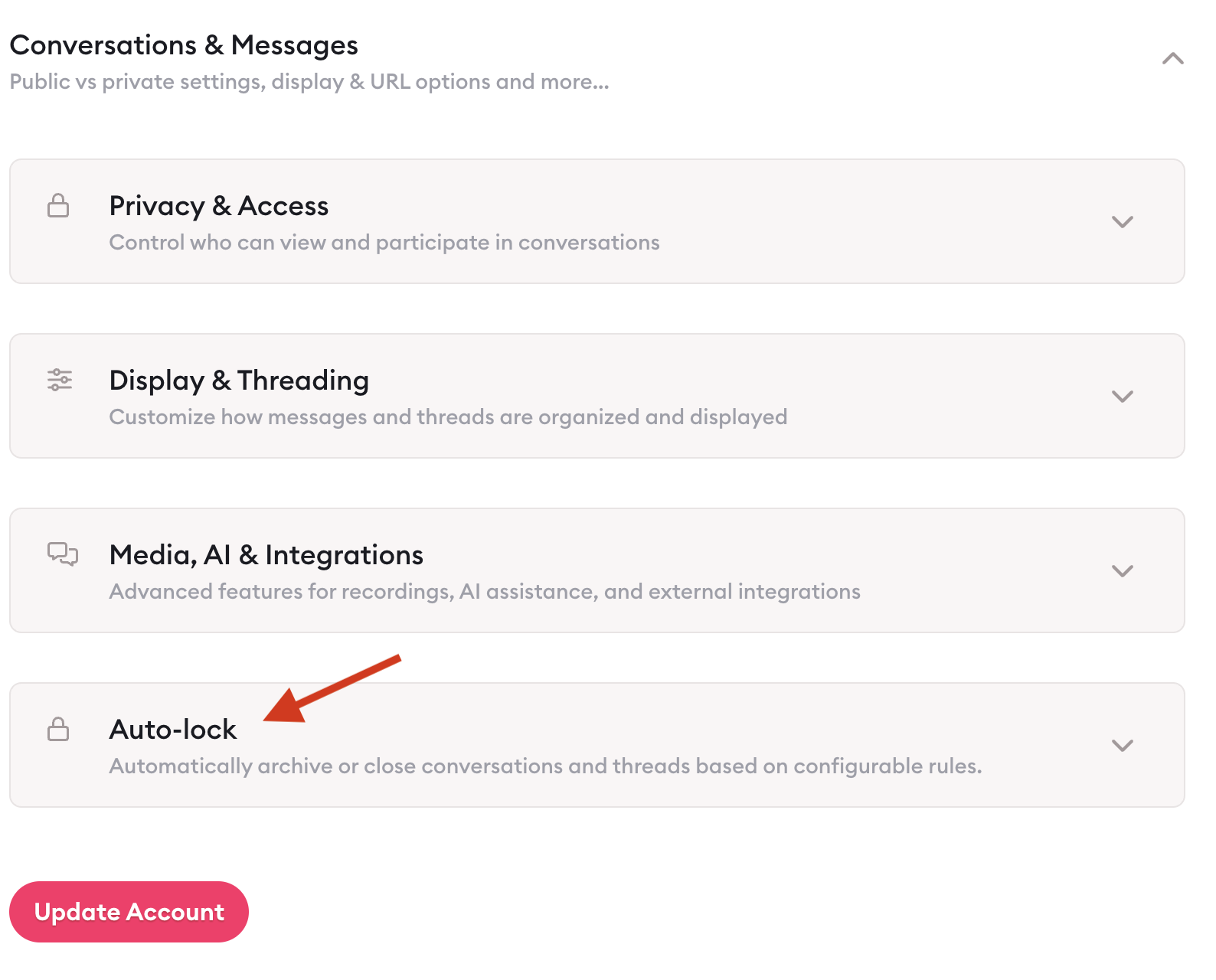
Choose scope: Conversations vs Threads
Use the Conversations / Threads tabs to switch between:
Conversations (entire conversation)
Threads (replies under a single message)
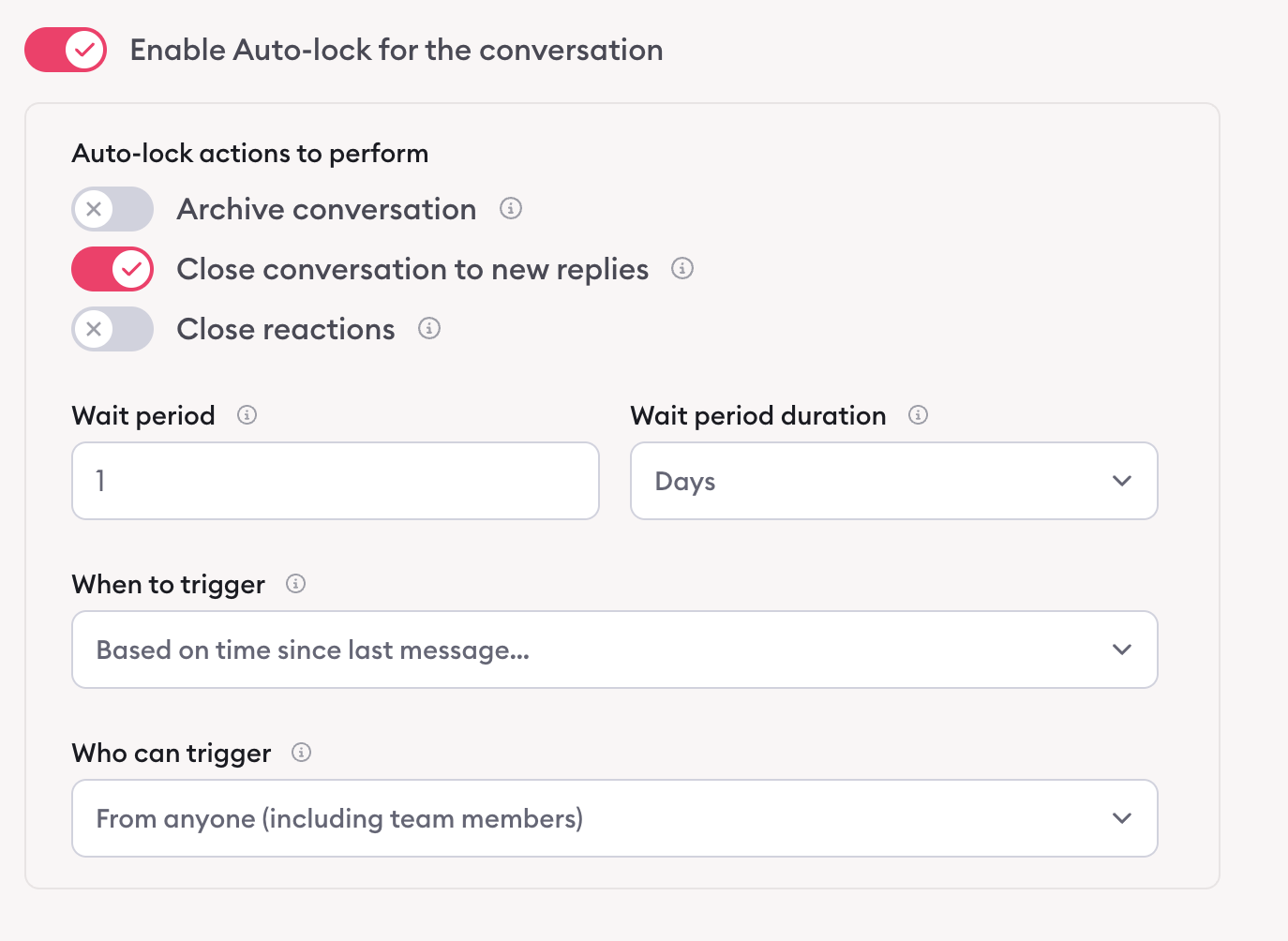
Enable auto‑lock
Click “Enable Auto‑lock for the conversation” (or for threads).
This reveals the Auto‑lock Rules section.
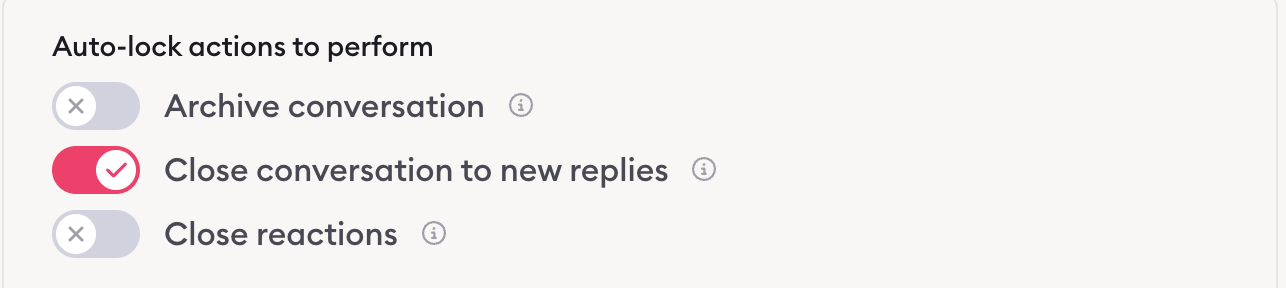
Pick what should happen
Under “Auto‑lock actions to perform”, choose:
Archive conversation / Archive thread
Close conversation to new replies / Close thread to new replies
Close reactions
Define when it should run
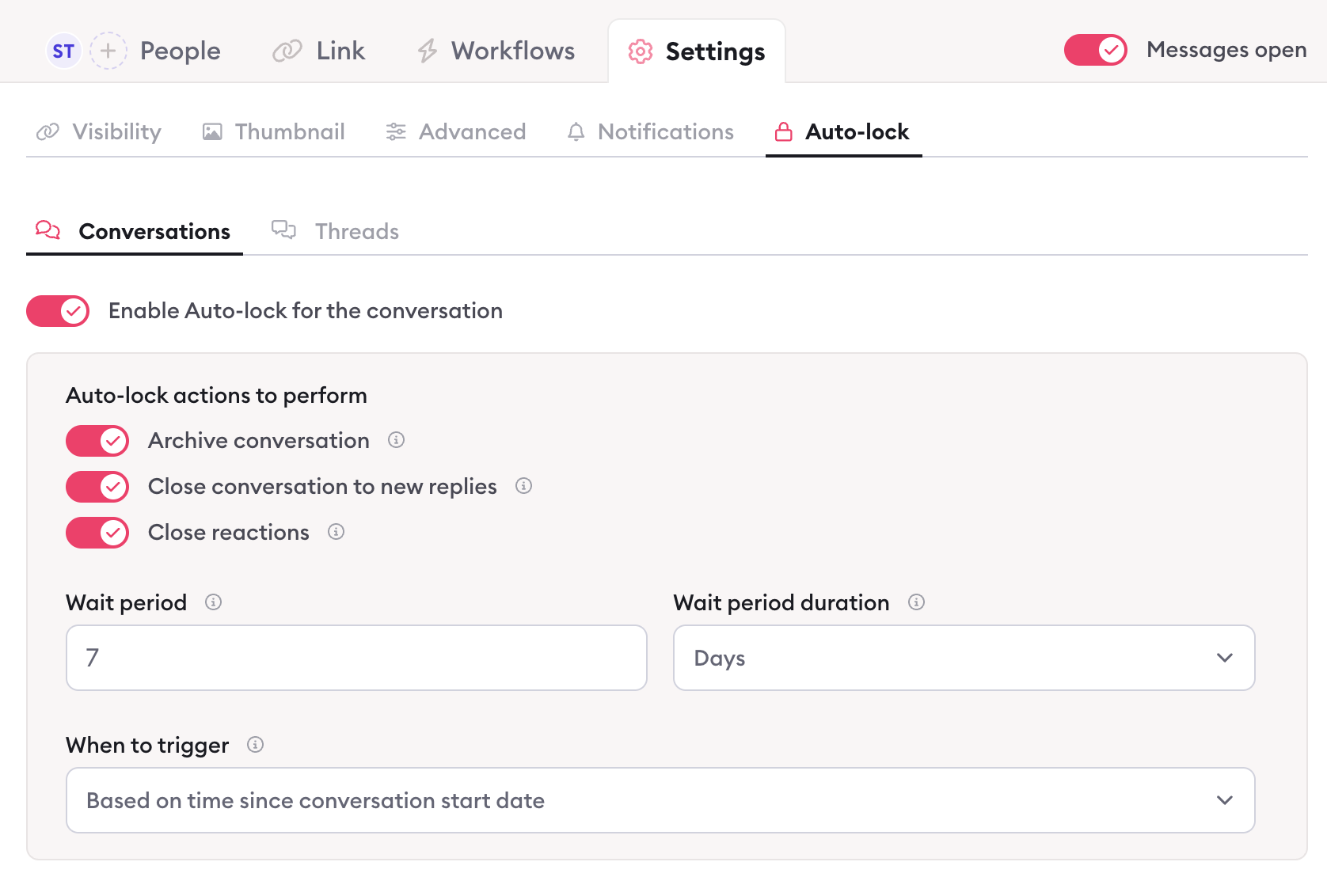
Wait period: Enter a number (e.g. 7) and unit (minutes, hours, days, weeks, months).
When to trigger:
Time since conversation start / thread creation
Time since last message…
Number of messages sent…

Fine‑tune who can trigger it (optional)
For “last message” or “number of messages” rules, choose:
From anyone
From guest(s)
From team member(s)
Optional: For message‑count rules, set “Specific number of messages” (e.g. 20).

Save your account settings.
Configure auto‑lock on a specific conversation
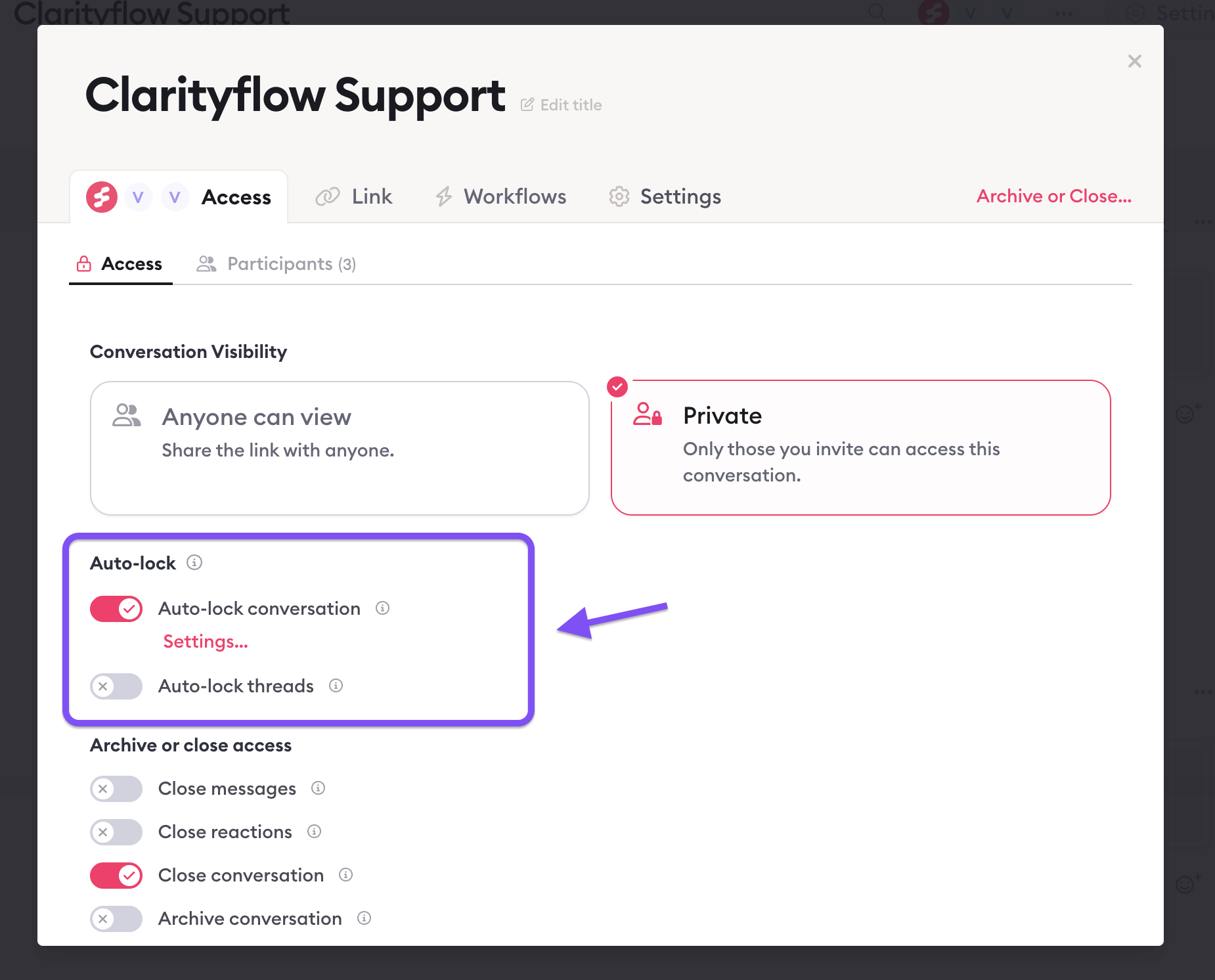
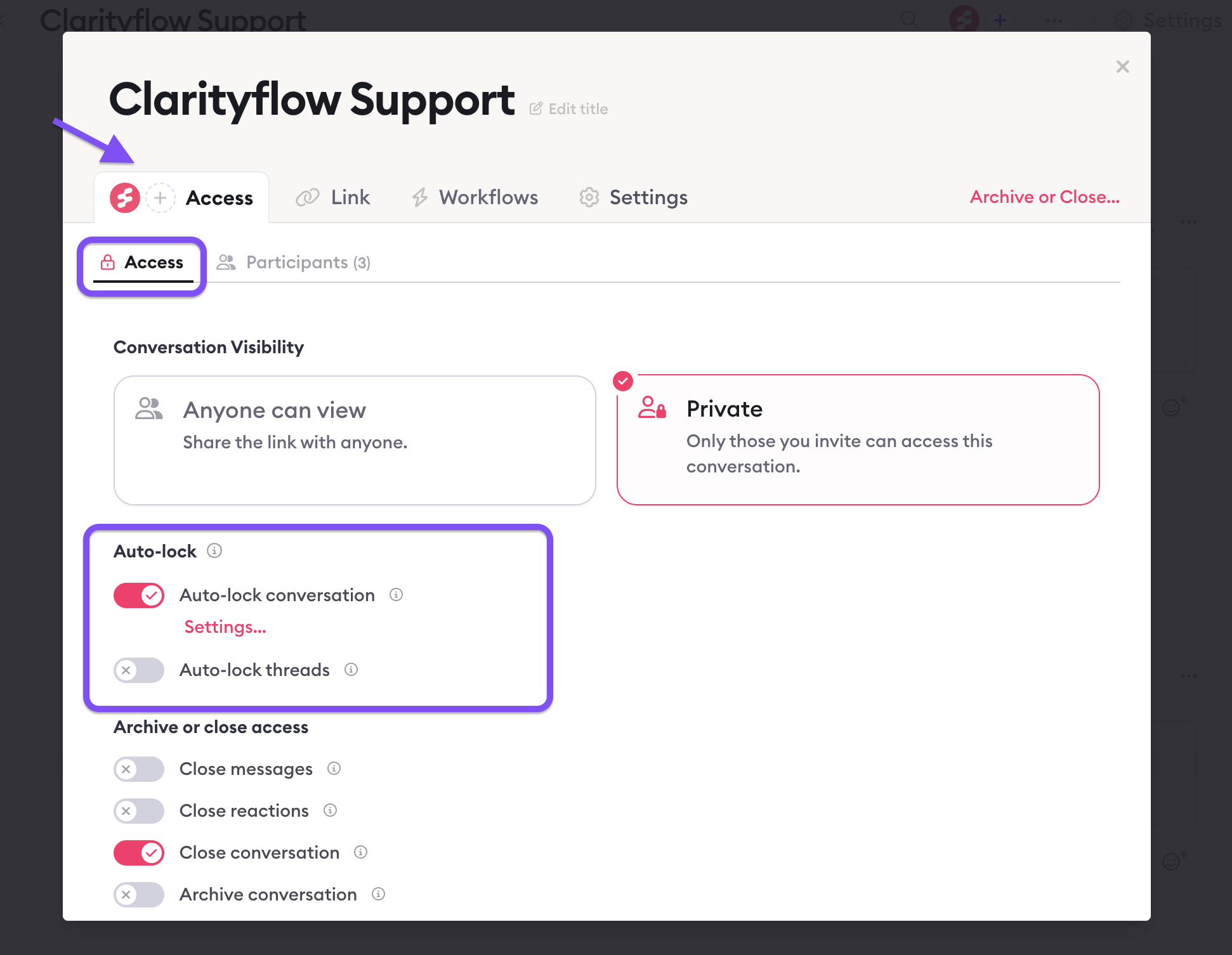
Open the conversation → Settings → Access → Access.
Under Auto-lock, turn on Auto-lock conversation and/or Auto-lock threads.
The first time you turn a toggle on, the rules panel opens so you can configure it. After that, it stays collapsed — click Settings… to reopen it.
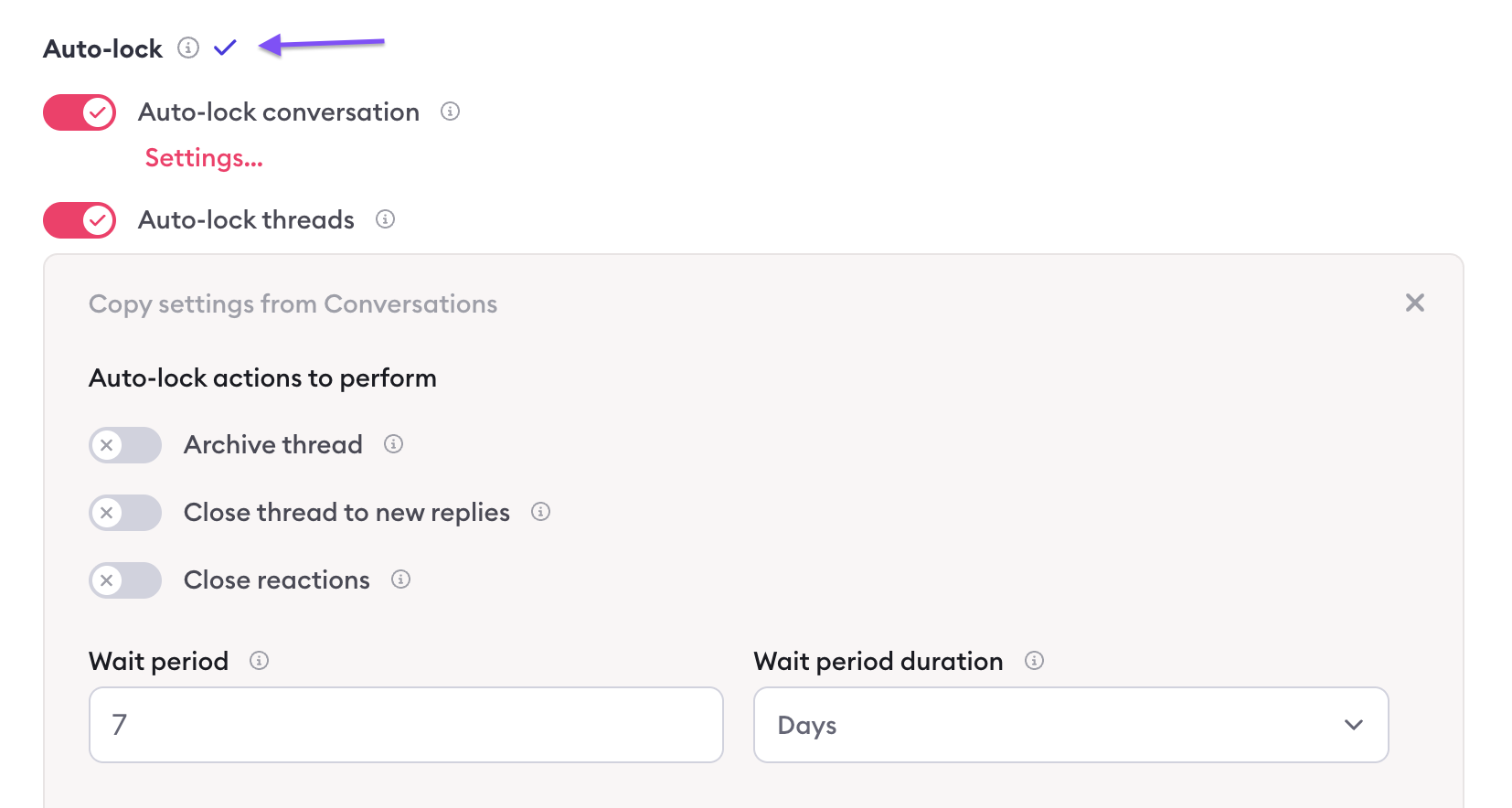
For threads, use Copy settings from Conversations if you want the thread rules to start from the conversation rules.
You can also open the same toggles from the conversation … menu → Archive or close….
Changes auto-save; a small autosave icon confirms when they’re stored.

Adjust rules
Use the Conversations / Threads tabs inside the modal.
Enable Auto‑lock and configure actions, wait period, trigger, and (optionally) who can trigger and message threshold—same options as at account level.
In the Threads tab, use “Copy settings from Conversations” to start from your conversation‑level rules.
Autosave
Changes here auto‑save; a small autosave icon confirms when updates are stored.
What users will see
When a rule fires:
Closed replies: The conversation or thread shows a “Replies are closed for guests” state and can’t receive new messages from guests.
Archived: It moves out of the main active list but remains accessible.
Closed reactions: No new reactions can be added; existing ones stay visible.
Related guides
Close a conversation or thread and prevent replies — Auto-lock applies the same close and archive actions, just on a rule instead of a click. If you want to know exactly what each action does to your guests before you automate it, read this one first.
Archive conversations — "Archive conversation" is one of the actions an auto-lock rule can perform. This covers what archiving does on its own, and how to bring an archived conversation back.
Understand who can access a conversation — Auto-lock can close messages (guests can still open the conversation) or archive it. It does not run Close conversation, so it will not lock guests out of old links.
Finding archived or closed conversations or threads — When a rule fires, the conversation or thread disappears from your normal view. Here's how to find the ones auto-lock has already acted on.

Learn more about Clarityflow.