
How do I run group coaching and cohorts alongside one-to-one clients?
Clarityflow runs group coaching and one-to-one coaching in one account. Each one-to-one client keeps a private conversation with you. A group is a members-only area that holds many conversations, and a group can be split into cohorts, each with its own members and conversations. Which plans include groups and cohorts is on the pricing page.
Updated · By Clarityflow
This guide is published by Clarityflow, the coaching software used in the steps below; the steps follow Clarityflow's help guides.
Which to use for which client
Who you're coaching | Use | Available |
|---|---|---|
One client, one to one | A private conversation, invite-only | Every plan |
A few people in one shared discussion | A group conversation: several people exchange messages in the same conversation | Every plan |
A program or community where members start and join many conversations | A group | Depending on your plan |
Separate runs or intakes of the same program | Cohorts inside one group | Depending on your plan |
If one shared conversation is enough, you don't need a group: invite the people to a group conversation instead.
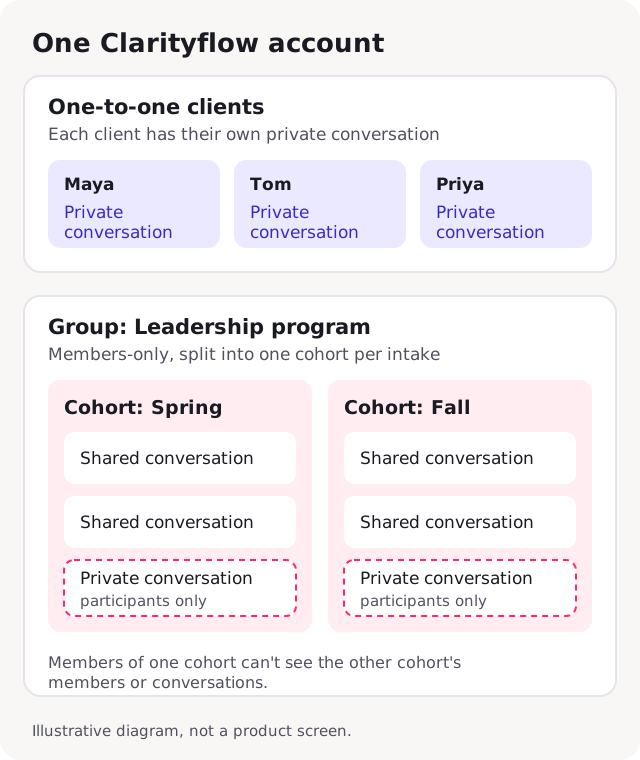
How one-to-one clients, a group and its cohorts fit in one account. Illustrative diagram, not a product screen.
Before you start
What you need: a Clarityflow account. Private and group conversations are on every plan; groups and cohorts depend on your plan, so check pricing for which plans include them, or read how Clarityflow's plans differ.
What you'll have at the end: each one-to-one client in their own private conversation, a group for your program with a cohort for each intake, member settings chosen, and a way to give one member private feedback inside the group.
How to run groups and cohorts alongside one-to-one clients, step by step
1. Keep each one-to-one client in their own private conversation
Invite the client from your Contacts ("Invite Someone") or from inside a conversation ("Add People"), and send the invitation by email or share it as a link. Their private conversation stays separate from any group you run. See how to invite and onboard a client, and how to run asynchronous coaching with one-to-one clients.
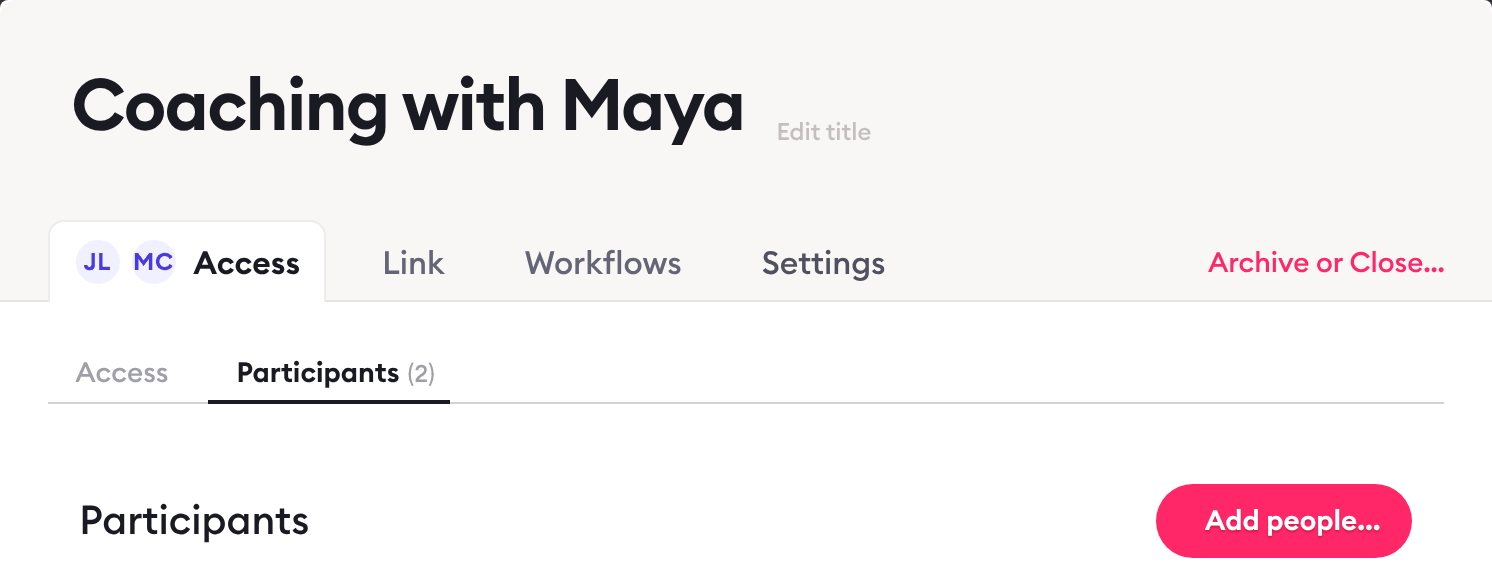
A sample client's private one-to-one conversation and its 'Add people…' button. Screen captured October 2026 with sample names.
2. Create the group
Go to Groups, select "New Group", and give it a name. Members see that name when they open the group. New groups are private by default: only the group's members, and team members who can administer groups, can open its conversations.
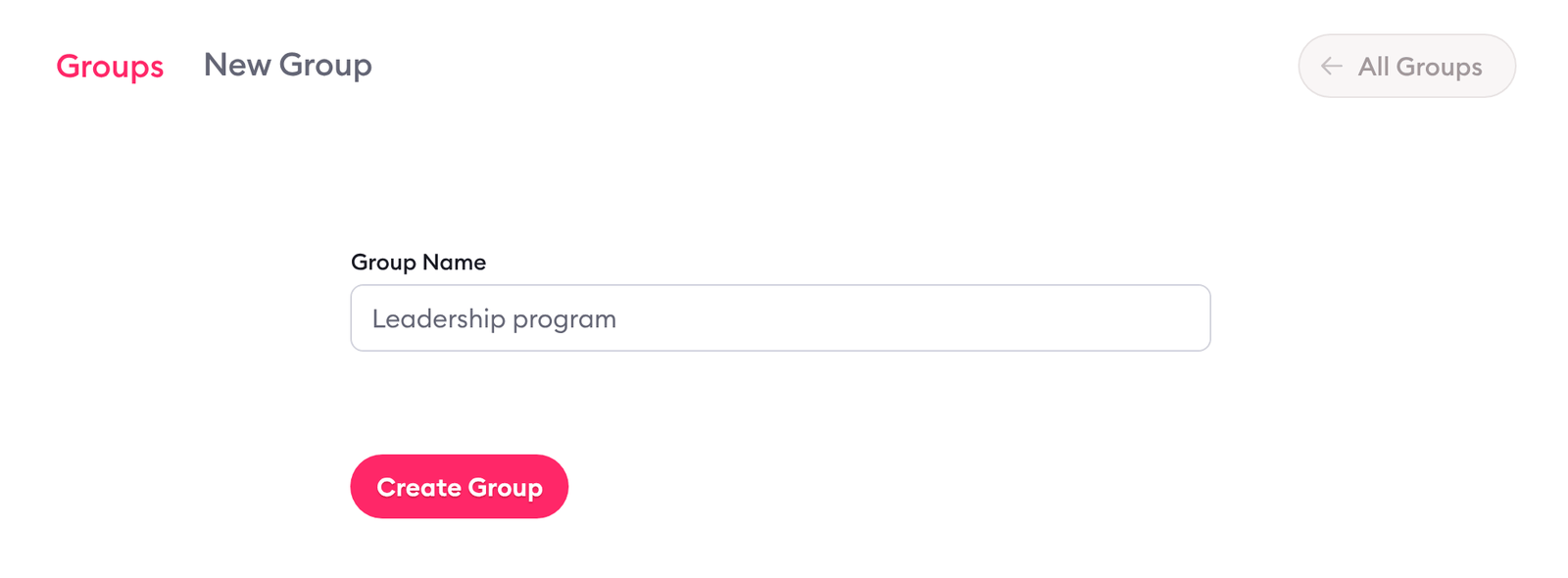
Creating a group named for the program. Screen captured October 2026 with a sample name.
3. Add a cohort for each run or intake
Every group starts with one cohort, "Cohort 1". To keep separate intakes apart, for example a spring and a fall run of the same program, open the group, select "Cohorts" and add another. Each cohort has its own members and its own conversations, and members of one cohort can't see the members or conversations of another. A cohort can inherit the group's settings.
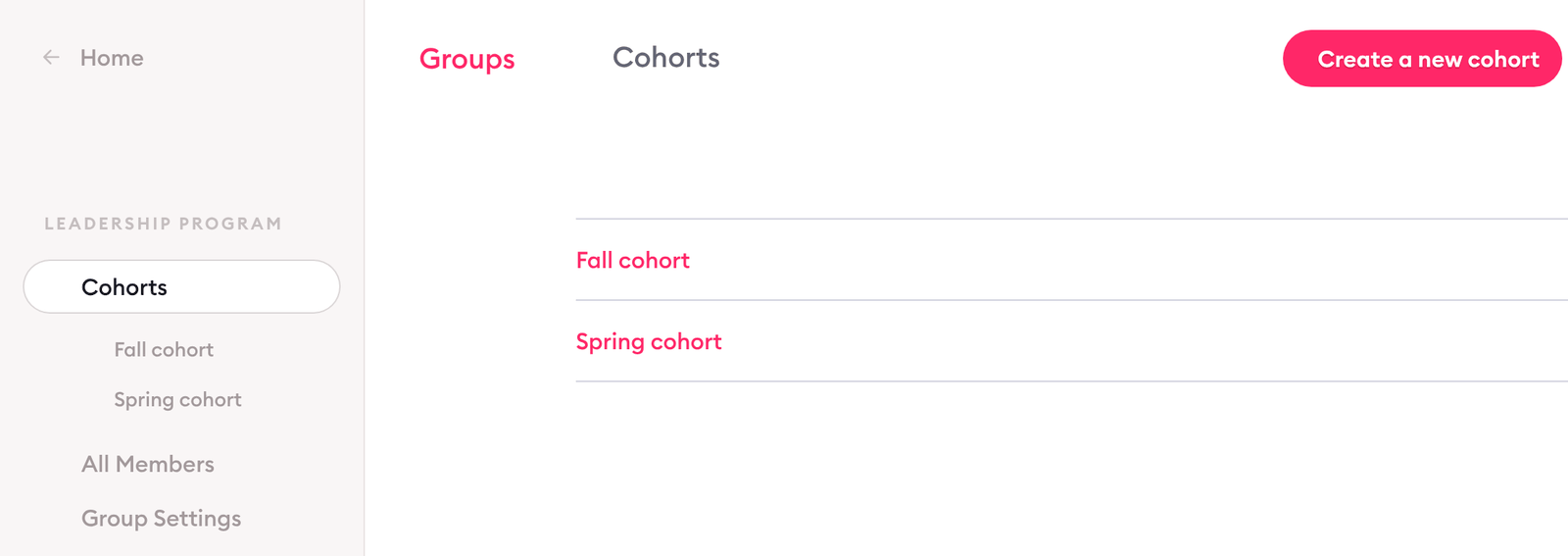
One group with a cohort for each intake. Screen captured October 2026 with sample names.
4. Invite members to the group or a cohort
Open the group, or the cohort you want, select "Members", then "Invite Someone". Enter the person's name and email, select "Continue", and send the invitation; it brings them into Clarityflow and then into the group. You can also invite someone to a conversation inside the group, which adds them as a member of the group too.
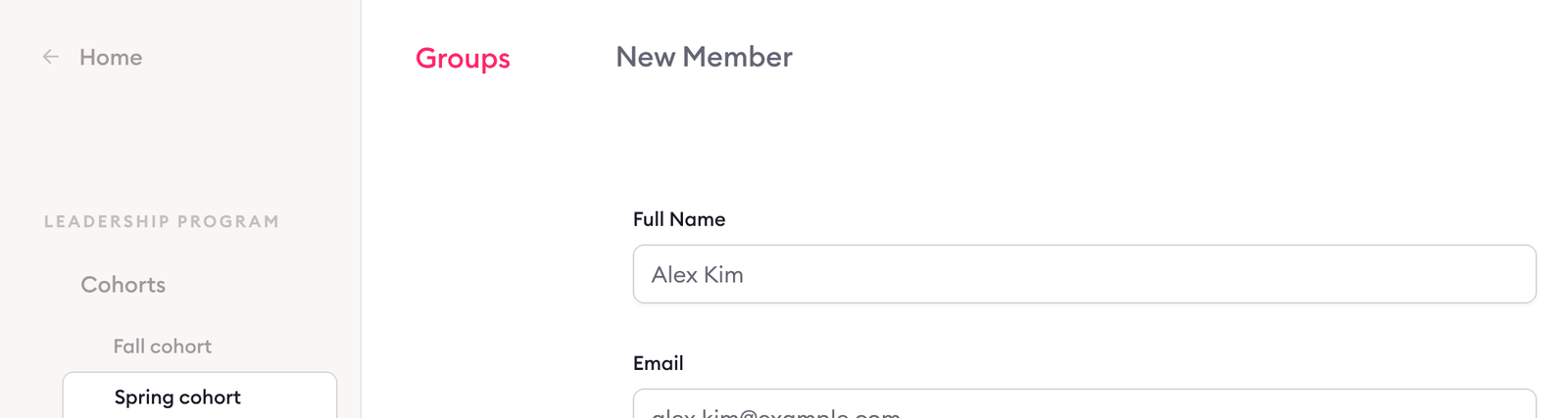
Inviting a sample member to a cohort by name and email. Screen captured October 2026 with sample data.
5. Choose what members can do
In the group or cohort settings, choose:
"Members can see the members directory": on by default. Turn it off to hide the member list from members.
"Members can create conversations": on by default. Turn it off if only your team should start conversations.
"Group members can make conversations private": off by default. Turn it on if members may start private conversations with you inside the group.
At least one team member is always a participant in every conversation in a group, so your team is part of every conversation there.
6. Give one member private feedback
Inside the group, make a conversation private: only the members added as its participants can see it, and at least one team member is always one of them. Or keep using that person's one-to-one conversation outside the group. Either way, feedback meant for one member stays out of the conversations the whole group sees.
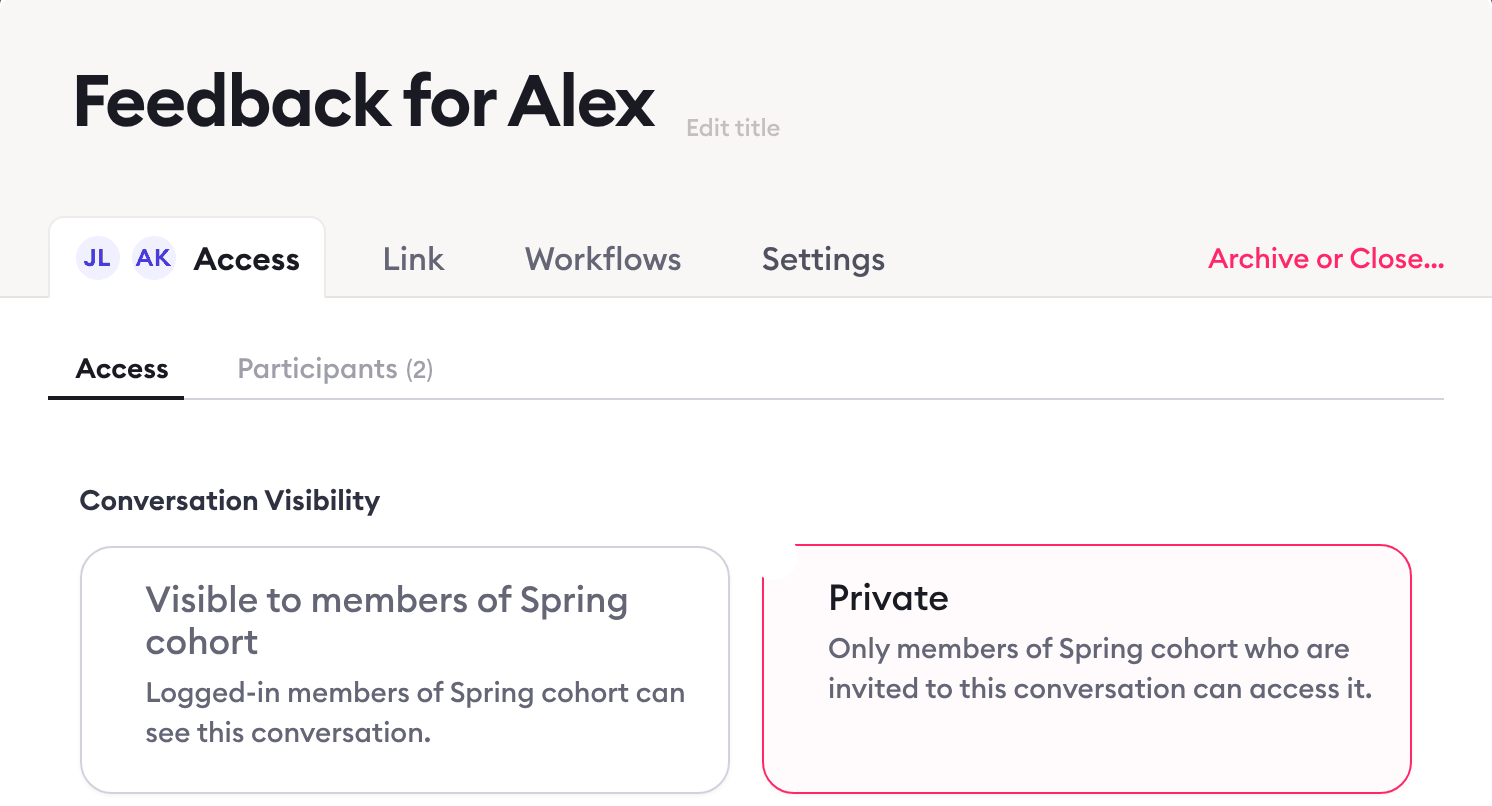
A private conversation inside a group, shared only with the coach and one member. Screen captured October 2026 with sample names.
7. Optional: connect a course to the group
Depending on your plan, you can connect a course to the group, or to specific cohorts, so new enrollees are added as members automatically or members can enroll themselves. To keep each enrollment private, turn off "New instances of this course will be public" in the course settings, or don't create the enrollment conversations in the group. See how to associate a course with a group.
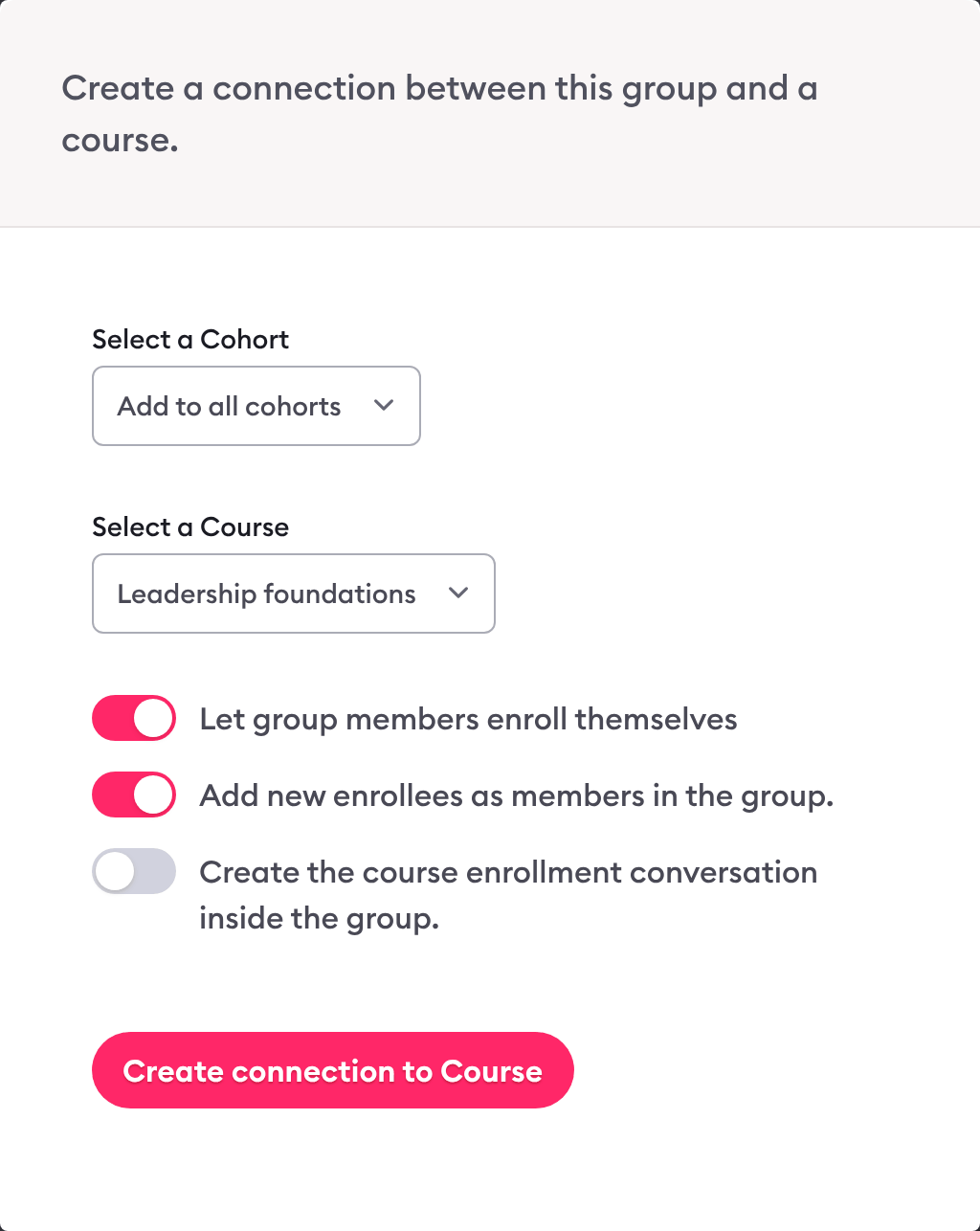
Connecting a sample course to a group and choosing how enrollments work. Screen captured October 2026 with sample names.
Limits of this guide: the steps describe Clarityflow as documented in its help guides on October 20, 2026, and menus can change. Which plans include groups, cohorts and courses, and how many, are on the pricing page.
Facts about groups and one-to-one clients in Clarityflow
Fact | Detail |
|---|---|
Private and group conversations | On every plan |
Clients and conversations | Unlimited on every plan |
Groups | A members-only area holding many conversations that only its members can see |
Cohorts | Split one group into separate sets of members and conversations |
Privacy | New groups are private by default |
Your team | At least one team member takes part in every conversation in a group |
Which plans include groups and cohorts, and current limits |
Facts checked October 20, 2026.
When not to use groups
One shared conversation is enough. For a few people in one discussion, a group conversation does the job on every plan; you don't need a group.
The topic is confidential. Keep it in a private conversation, one to one or private inside the group, not in a group conversation every member can see.
Your coaching is one to one only. Each client already has a private conversation; add a group when you run a program or community.
The group mostly meets live. A group in Clarityflow holds the recorded and written conversation between calls; it doesn't replace the live sessions themselves.
Frequently asked questions
Can I use Clarityflow for group coaching?
Yes. Every plan includes group conversations, where several people exchange messages in the same conversation. Groups and cohorts, for programs and communities with many conversations, depend on your plan; see the pricing page.
What's the difference between a conversation and a group?
A conversation is a single page of messages with threaded replies. It can be one to one or have several participants, and everyone in it sees every message. A group holds many conversations that only its members can see, and it can be split into cohorts. See the full guide to groups.
See groups and one-to-one coaching in Clarityflow
See how Clarityflow keeps one-to-one clients, groups and cohorts in one account.

Learn more about Clarityflow.