
Conversation Notifications
Clarityflow sends two kinds of notifications per conversation:
New message notification — sent when a new message is posted in a conversation.
Message played notification — sent when someone plays (watches/listens to) a message in a conversation.
Both are on by default.
For coaches, these two notifications cover the core back-and-forth of async work: you know when a client has responded, and you know when they've actually watched your message — useful for following up if someone goes quiet.
Three levels of control
Notifications can be configured at three levels, from broad defaults down to a single person in a single conversation.
1. Account level (default for all new conversations)
Sets the default notification behavior for every new conversation created in your account. Use this to establish a baseline that makes sense for how you typically work with clients.
Go to: Account Settings → Conversations & Messages → Privacy & Access
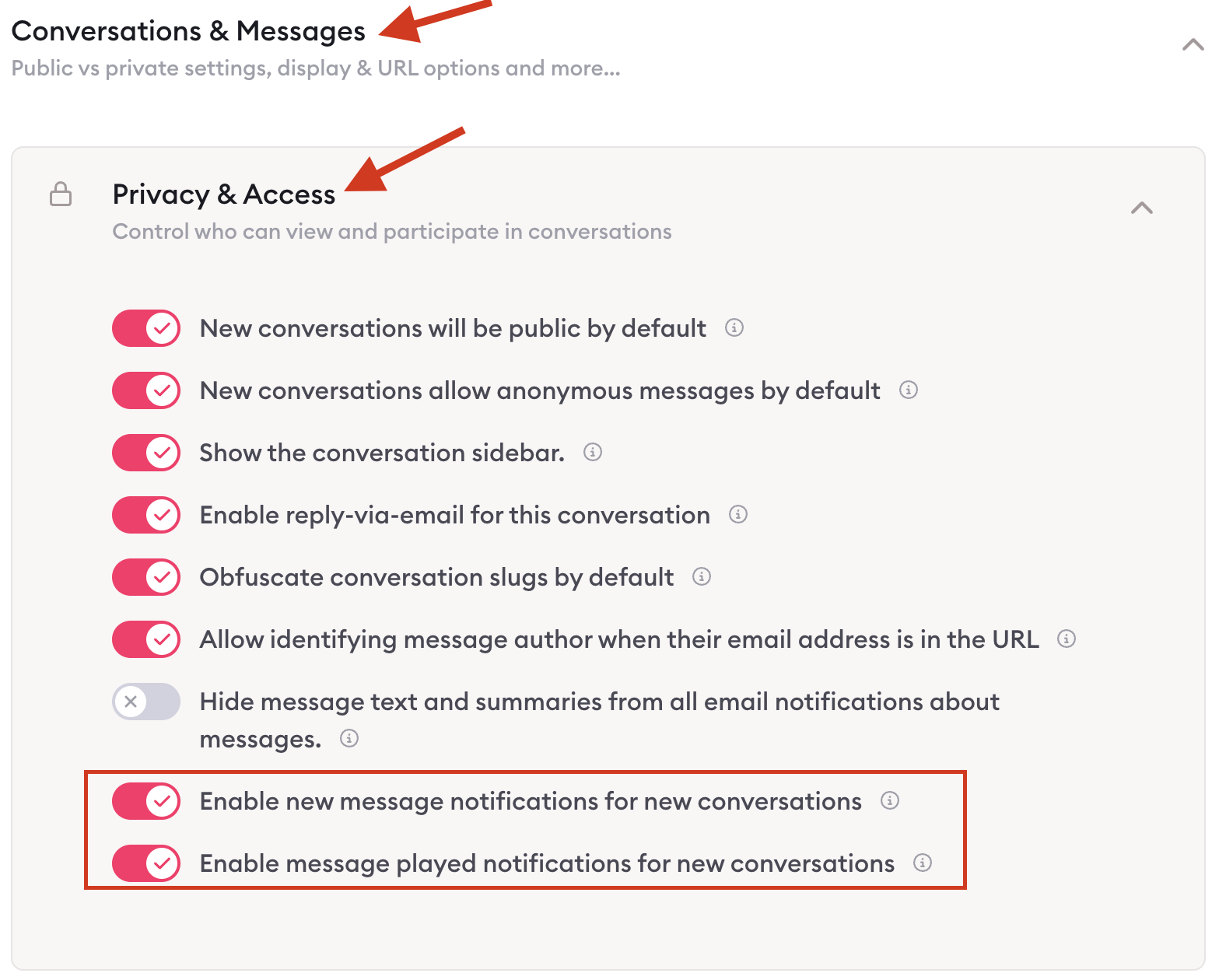
2. Conversation level (override for all participants at once)
Changes notification settings for one conversation — applies to all participants in that conversation. Useful when one conversation needs different rules than the rest, like a busy group thread where you want to reduce notification volume for everyone
Go to: Open the conversation → Settings Modal → Settings → Notifications
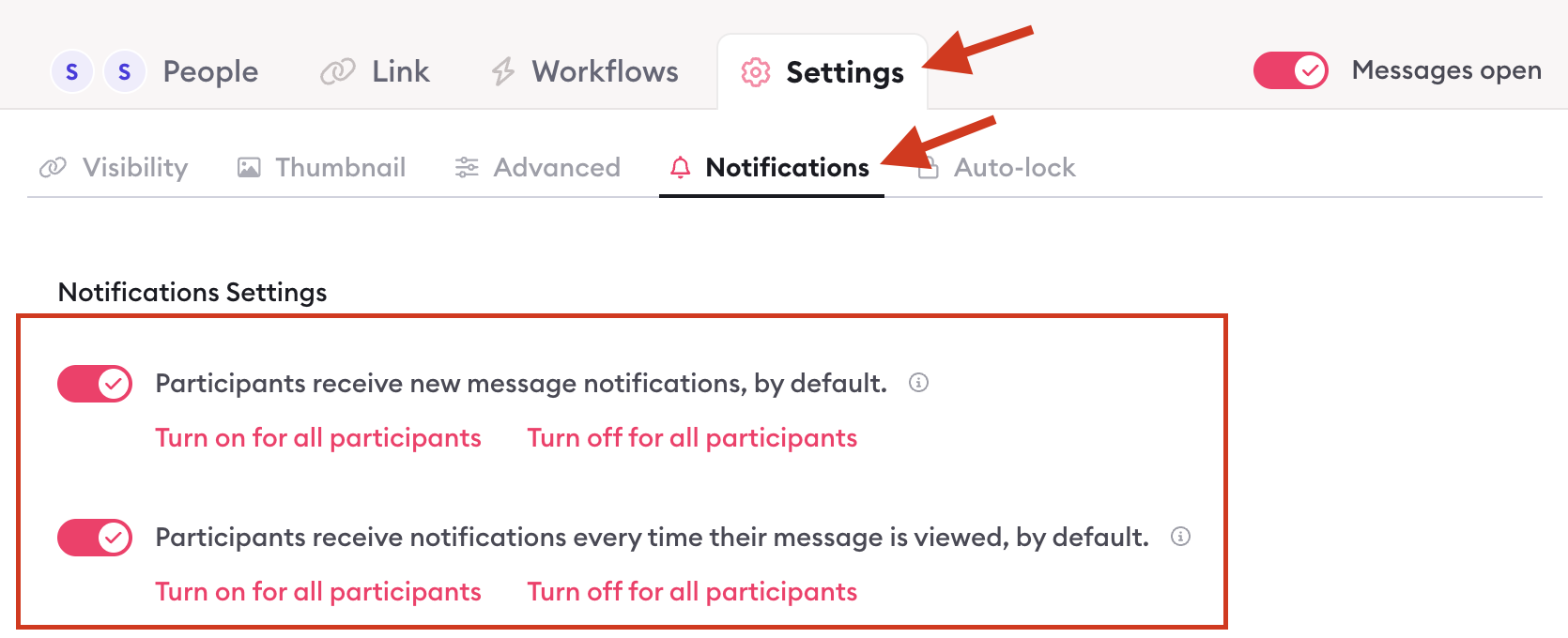
3. Per-participant level (override for a specific person in one conversation)
Turn notifications on or off for a specific participant in one conversation — useful when someone's role in that conversation has changed and you don't want them receiving every update.
Go to: Open the conversation → Settings Modal → People panel → Select participant → Settings
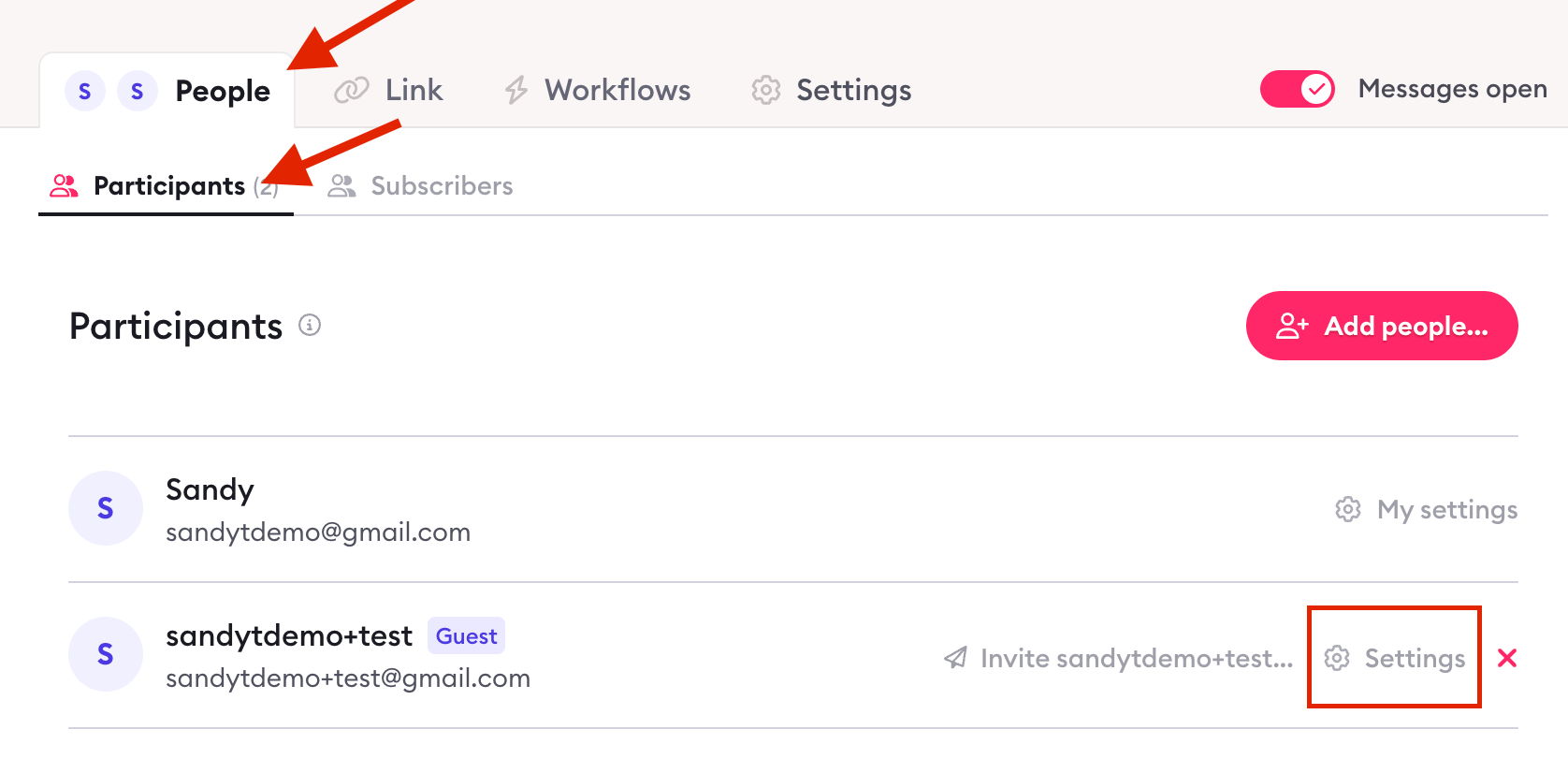
Turning off notifications for yourself globally
If you want to stop receiving notifications for yourself across all conversations, that is managed through your personal profile — not the conversation settings.
Go to: My Settings → Notifications
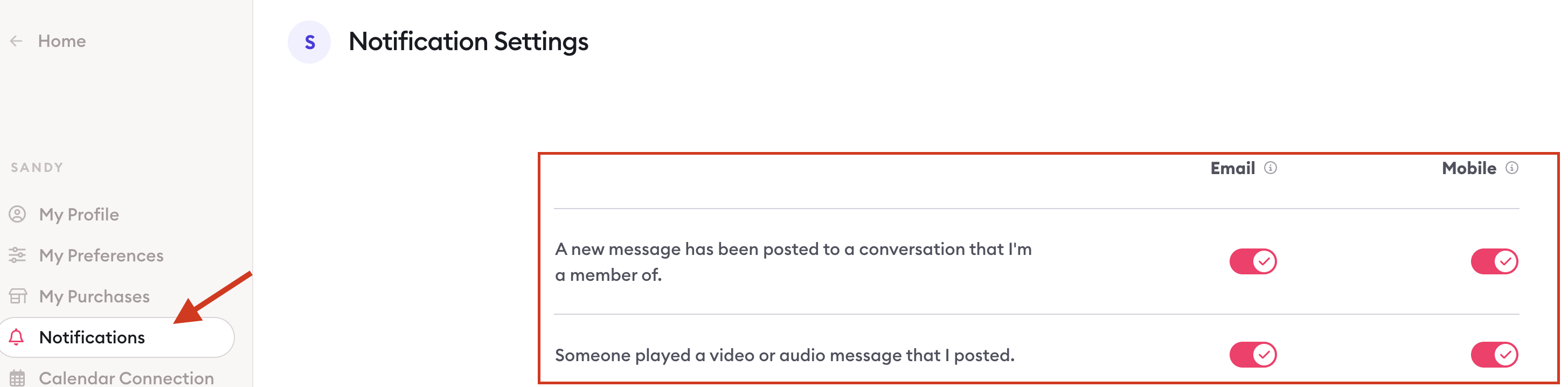
Note: You cannot change another participant's personal notification settings on their behalf. Each person manages their own global preferences from their own profile.
Where to manage notifications
What you want | Where to go |
|---|---|
Default for all new conversations | Account Settings → Conversations & Messages → Privacy & Access |
Turn on/off for all participants in one conversation | Conversation → Settings Modal → Settings → Notifications |
Turn on/off for a specific participant in one conversation | Conversation → People → Select participant → Settings |
Turn off for yourself across all conversations | My Settings → Notifications |

Learn more about Clarityflow.