
Easy access to notes, links, attachments, and tasks in the conversation
A busy coaching conversation fills up fast — videos, notes, shared links, PDFs, tasks, forms. Scrolling back through weeks of messages to find one thing takes time you don't have between clients.
Filters let you narrow the conversation sidebar down to just the type of content you're looking for — text, links, attachments, tasks, media, and more. Turn on a filter, and the sidebar (and the conversation itself) only shows messages that match. Click any message to jump straight to it.
Anyone in the conversation — coach or client — can use Filters. It's the same tool for everyone.
Filters — find anything in your conversation, fast
Picture this: someone messages you five minutes before your call asking about "that resource you sent last month." Instead of scrolling through weeks of videos, notes, and check-ins, you open Filters, turn on Links, and there it is.
Use Filters when you need to:
Find a written note, session recap, or resource without scrolling past every video
Reopen a link, workbook, or form that was shared earlier — no need to replay every video reply
Pull up every message with an attachment — worksheets, contracts, PDFs
Jump to messages with tasks, so you can follow up on homework or check off your own to-dos (use Tasks → My tasks to see just yours)
Catch up on unseen replies before a session, then narrow further to attachments or tasks if needed
Rewatch a video check-in using Media → Video
If you've ever thought "I know it's in here somewhere," Filters are for exactly that moment.
How to access Filters
Open a conversation with the sidebar visible.
In the sidebar Messages list, click the filter icon.
The Filters panel opens.
If no filters are turned on, you'll see Showing all — the full conversation, unfiltered.
.png)
Empty filter types stay hidden. Coaches and clients see the same options for the content that exists in this conversation. Internal messages always stay hidden from clients, as usual.
Filter by content type
Turn on one or more toggles. The sidebar and the conversation update to show only messages that match.
Filter | What it shows | Real-world example |
|---|---|---|
Unseen | Messages you haven't seen yet (not your own) | Coach: catch up on a client's replies before a session. Client: see what's new from your coach. |
Texts | Messages with written text content | Find session notes or a written check-in without scrolling past videos |
Links | Messages that include web links | Reopen a shared resource URL either of you dropped in the thread |
Attachments | Messages with file attachments | Find the signed agreement, or re-download a worksheet PDF — without scrolling past every video to get there. |
Embeds | Messages with embedded media (YouTube, Loom, etc.) | Jump back to a Loom video someone shared in the thread |
Tasks | Messages that include tasks | Jump to messages with tasks — whether it's homework you assigned or your own to-dos to follow up on |
Forms | Messages with a form or form submission | Find the intake or feedback form in this conversation |
Appointments | Messages tied to appointments | Locate scheduling-related messages quickly |
Product offers | Messages with a product offer | Find where a package or checkout offer was shared |
Media | Messages with recorded audio or video | Filter to video (or audio) recordings only |
Tasks: My tasks vs. All tasks
When you turn on Tasks, two nested options appear:
My tasks — messages with tasks assigned to you
All tasks — messages with any tasks in this conversation that you're allowed to see
For example, before a 1:1 session, you might use My tasks to jump straight to what's assigned to you — without opening the full Tasks page. Use All tasks if you want to review everything in the conversation instead.
Media: Audio, Video, or All
When you turn on Media, you can narrow further:
Audio
Video
All (both)
In a long program conversation with months of history, a coach might filter to Media → Video when they only want recorded video messages — no text or files in the way. A client can do the same to replay their coach's last video reply without scrolling past everything else.
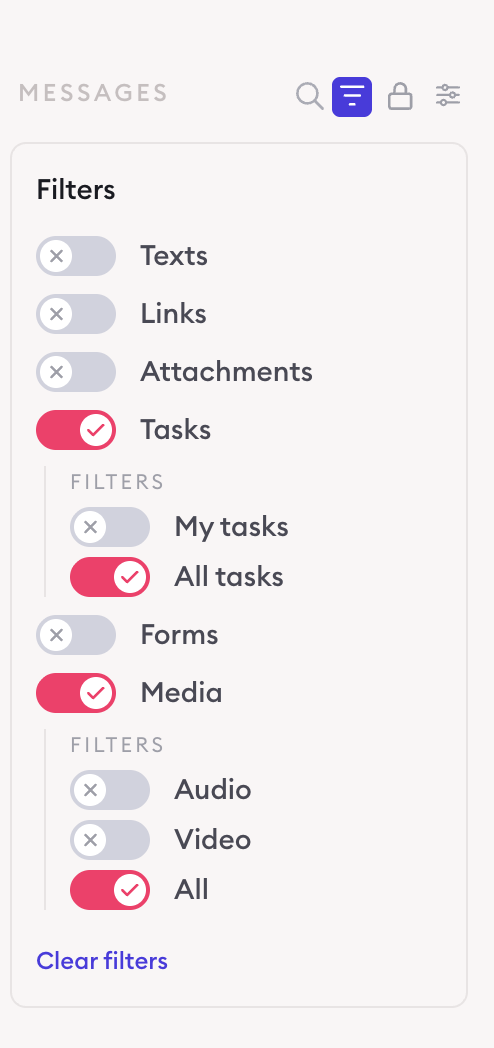
Combine and clear filters
You can turn on more than one filter at a time. Clarityflow shows only messages that match all the filters you've selected — so you could, for example, focus on unseen task messages, or on just the attachments you haven't gotten to yet.
Click Clear filters anytime to reset and see all messages in the conversation again.
The filter icon stays highlighted while Filters are active, so you can tell at a glance you're not looking at the full message list.
Filters apply to your own view only. Turning them on doesn't change what the other person sees.
Visibility and permissions
Filters don't change who can see a message — only which messages are listed for you right now.
Same tools for coaches and clients — if you can see the conversation sidebar, you can open Filters and use the same content-type toggles.
Normal conversation rules still apply — internal messages, drafts, and other private content stay hidden from anyone who shouldn't see them. Filters never expose messages that were already out of reach.
"My tasks" is personal — it always means tasks assigned to whoever is logged in, so coaches and clients each get their own shortlist.
Conclusion
Filters turn a long, scrollable conversation into exactly the messages you need — notes, links, files, or tasks — in a couple of clicks. And within a single message thread, Filters work the same way, narrowing down just that thread's messages. Either way, Filters get you there faster.

Learn more about Clarityflow.