
Using Tags to Organize Your Work
What tags are (and what they are not)
Tags are labels you add to conversations (and to templates in your Library) so you can organize and filter your work. They are for you and your team — clients do not see or manage tags.
Tags are not the same as @mentions. If you type @ in a message to notify someone, that is a mention — it alerts that person inside a conversation. Tags do not send notifications and are not written inside message text.
If you use contact custom attributes on the Contacts page, those are separate from conversation tags too.
Why coaches use tags
When you have many client conversations, tags help you group them without renaming every thread. Common examples:
By client type: VIP, Group program, 1:1
By stage: Onboarding, Active, Alumni
By offer: Course – Spring, Intake – Website
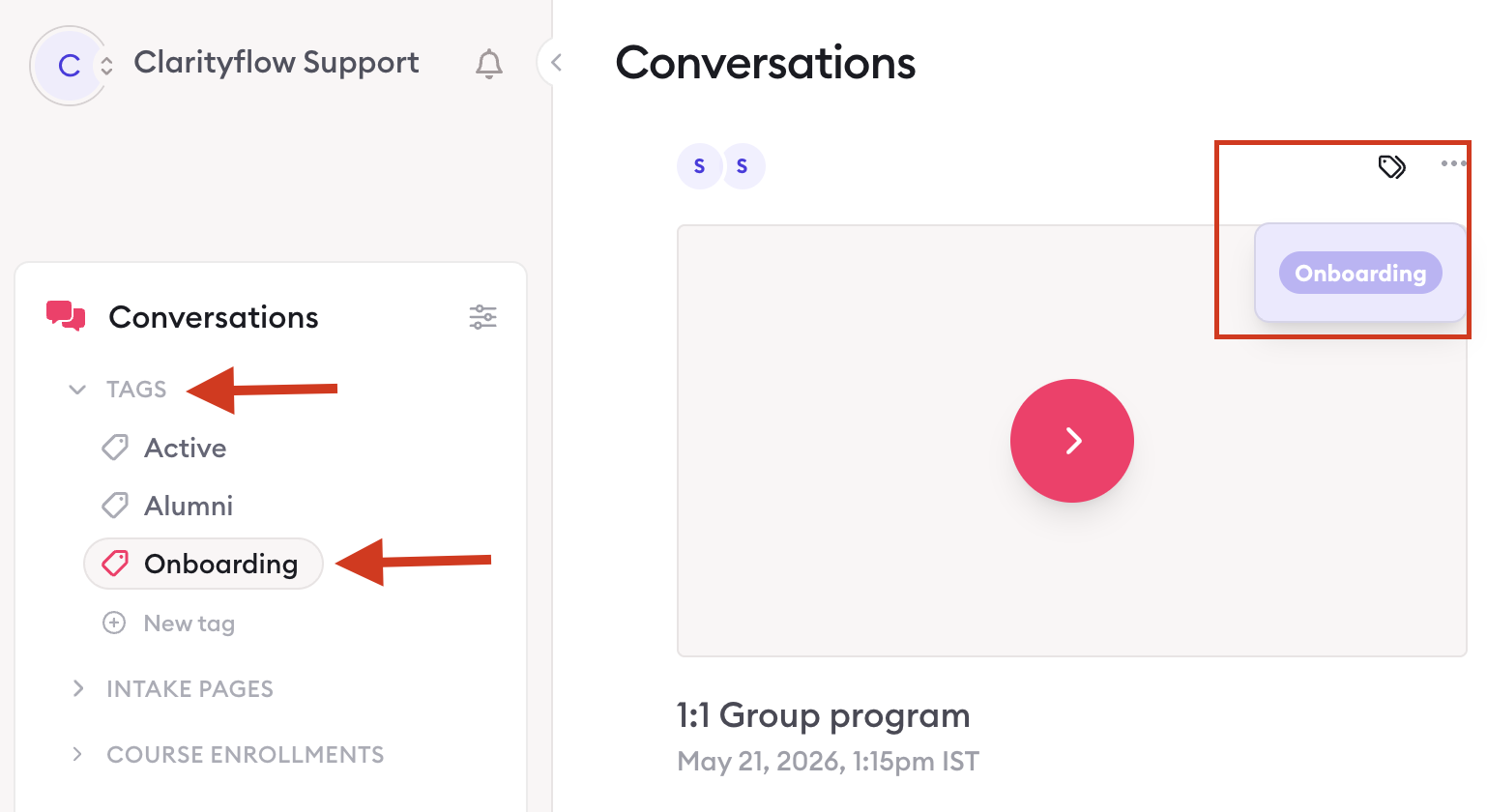
Click a tag in the sidebar to see only conversations with that label — useful when you want a focused list before a coaching day or when handing off to a team member.
Conversation tags
Create a tag
There are two ways to create a tag:
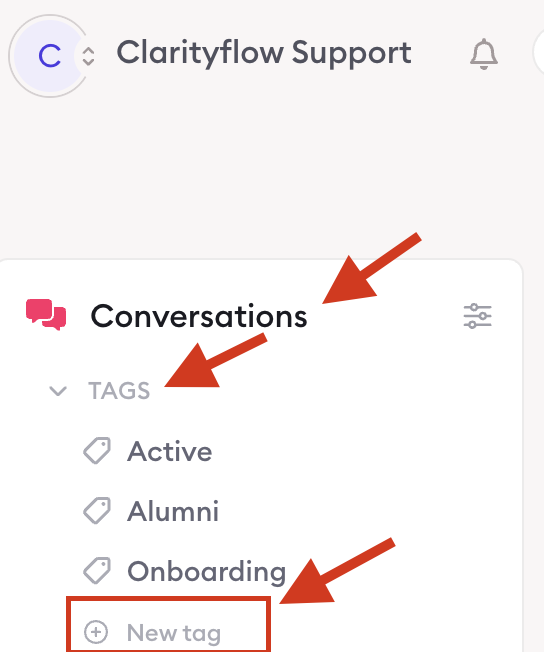
In the left sidebar, expand the Tags section under Conversations and select New tag.
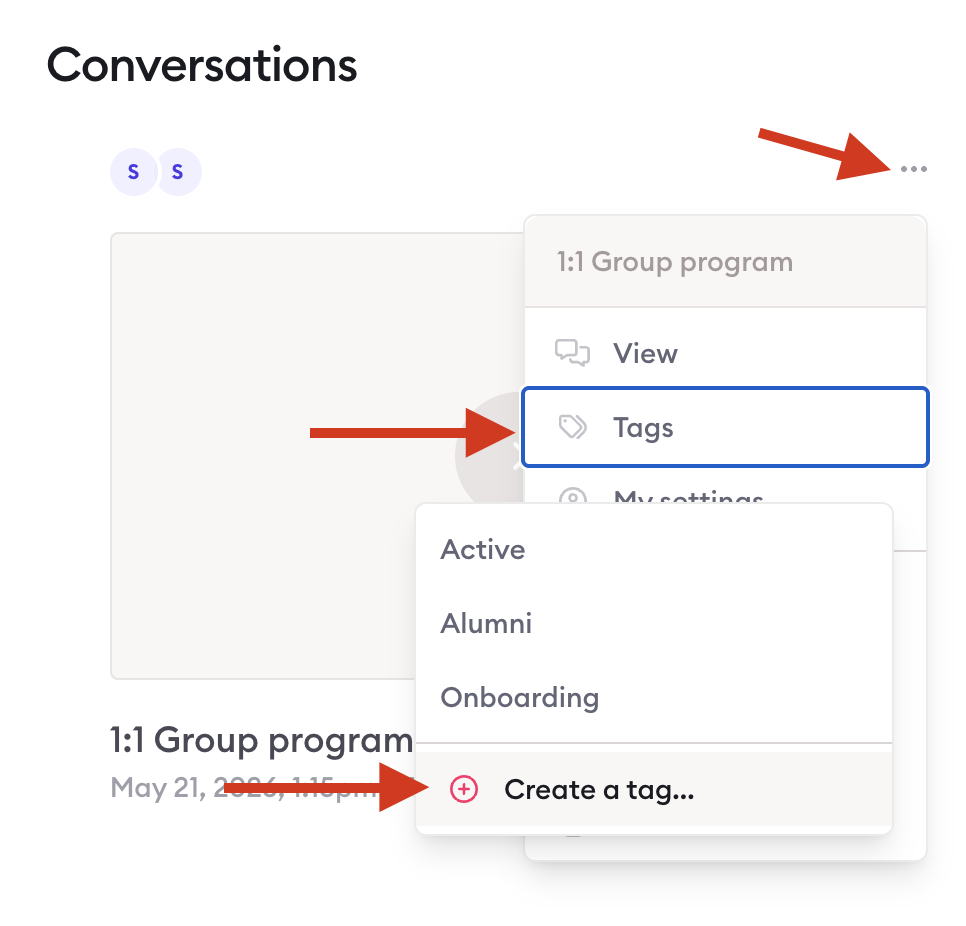
From your conversations list, click the three-dot menu on any conversation and select Tags — from there, you can create a new tag and apply it to that conversation at the same time.
Apply tags to a conversation
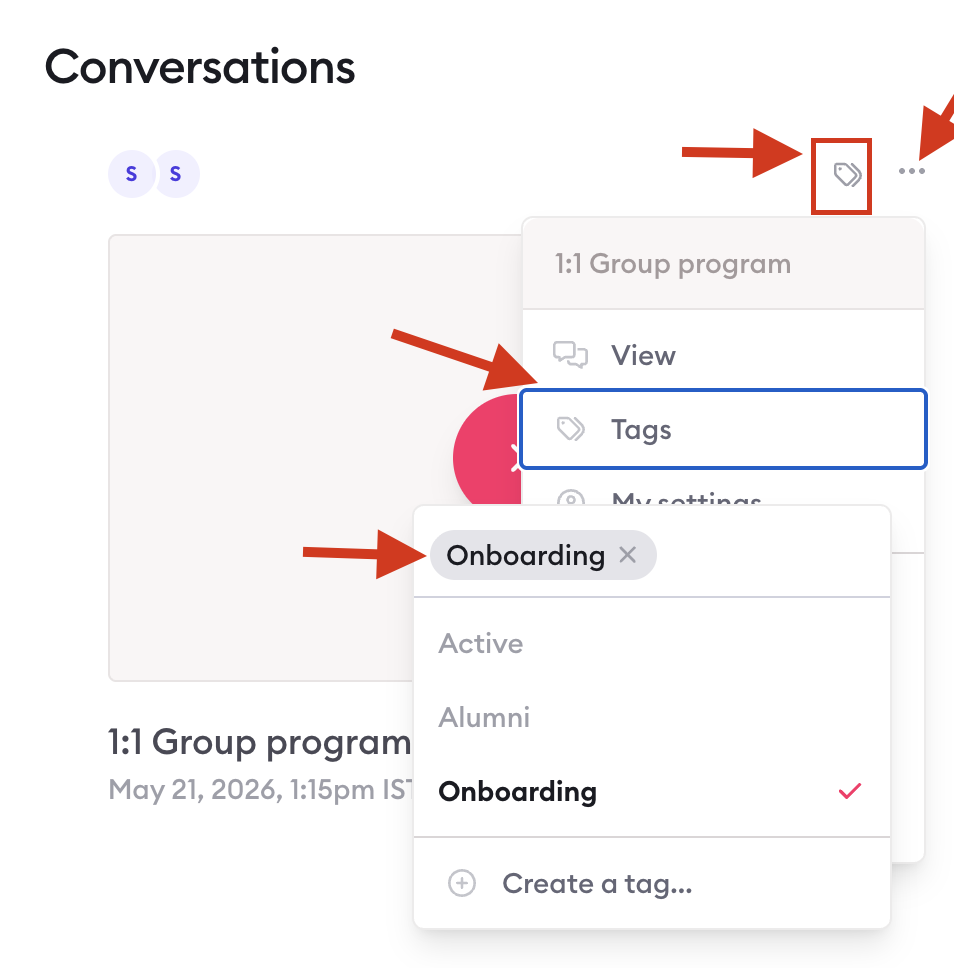
In that conversation's Settings → Tags, select one or more tags. A conversation can have multiple tags. Tags also appear on the conversation in your list/grid view so you can scan them quickly.
Filter conversations by tag
Go to Conversations.
In the sidebar, expand Tags.
Click a tag name to show only conversations with that tag.
Click again (or clear filters) to return to the full list.
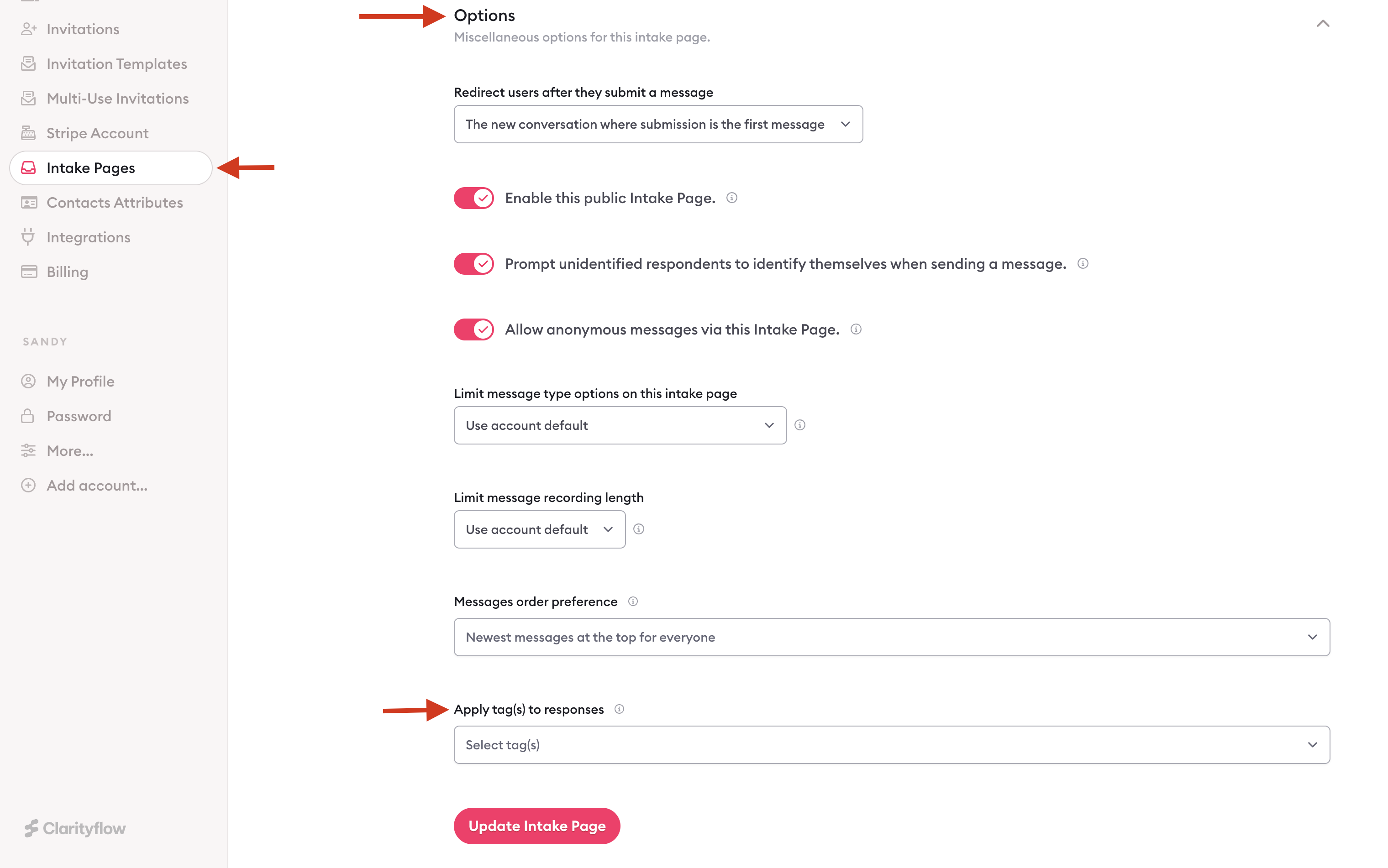
Auto-apply tags from an Intake Page
When someone submits a response through an Intake Page, Clarityflow can automatically tag the new conversation that gets created. This means you don't have to manually tag each new inquiry — it's handled as soon as the form is submitted.
Where: Intake Page editor → Options → Apply tag(s) to responses
You need at least one conversation tag created first before this option is available.
Tags in Workflows
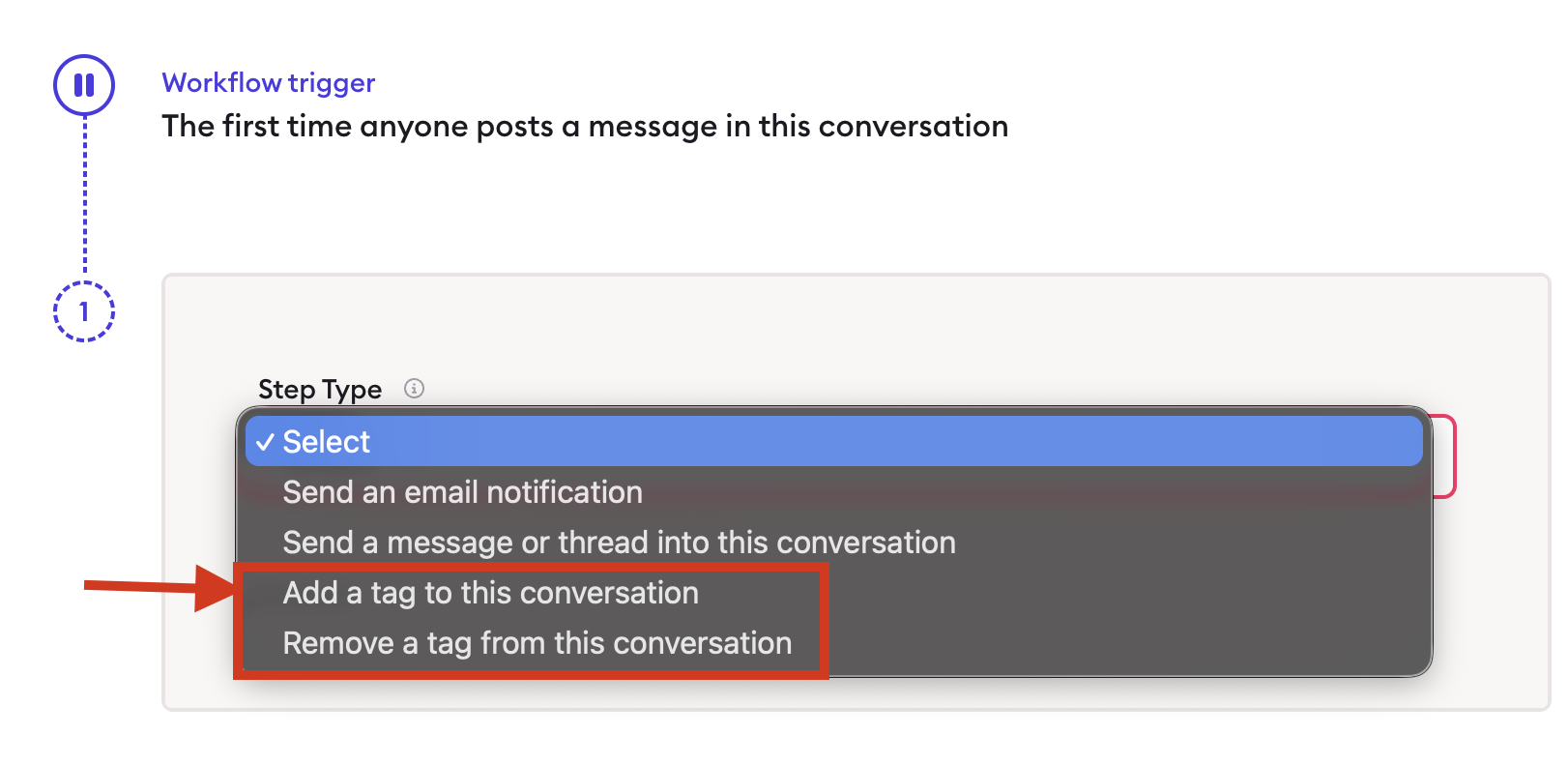
Workflows can add or remove conversation tags automatically when something happens — for example when a conversation is created, a message is posted, a form is submitted, or a task is completed. This is useful for keeping your conversation list up to date without manual work. For example, when a client completes an onboarding form, a workflow can add the tag Onboarded and later remove Onboarding when they post their first reply.
Where: Workflow step type → Add a tag to this conversation or Remove a tag from this conversation
You must have conversation tags set up before these steps appear.
Tags in your Library (templates)
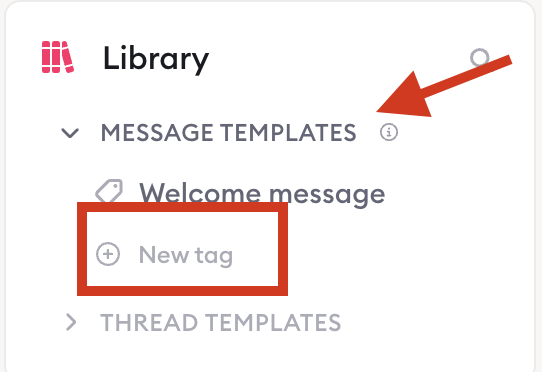
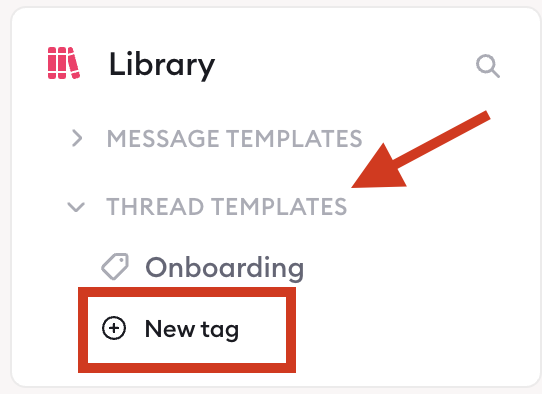
There are separate tag lists for organizing message templates and thread templates in the Library. These tags only filter templates — they are not applied to live client conversations. If you have a growing library of reusable messages, tagging them by purpose (Welcome, Check-in, Offboarding) makes it easier for you and your team to find the right template quickly.
Where: Library sidebar → Tags (under message or thread templates)
Quick reference
Tag type | Used on | Purpose |
|---|---|---|
Conversation tags | Live conversations | Filter and organize client work |
Message template tags | Library message templates | Organize reusable messages |
Thread template tags | Library thread templates | Organize reusable threads |
@mentions | Inside message text | Notify a specific person |
Where to manage tags
What you want | Where to go |
|---|---|
Create or edit conversation tags | Conversation → Settings → Tags, or Conversations sidebar → Tags |
Tag a conversation | Conversation → Settings → Tags |
Filter by tag | Conversations → sidebar → Tags |
Auto-tag intake responses | Intake Page → Options → Apply tag(s) to responses |
Add/remove tag in automation | Workflow → Add/Remove tag step |
Organize templates | Library → Tags |

Learn more about Clarityflow.